
Follow-Ups — Managing Tasks and Client Communication
Track calls, emails, messages, meetings, and other tasks with automated sequences, templates, and team workload management.
The Follow-Ups section helps you stay organised by tracking calls, emails, messages, meetings, and other tasks that need to be completed. It ensures that no lead or client is forgotten while helping your team maintain timely and consistent communication throughout the sales journey.
By centralising all follow-up activities in one place, sales teams can prioritise tasks, improve customer engagement, and increase the likelihood of converting leads into successful bookings.
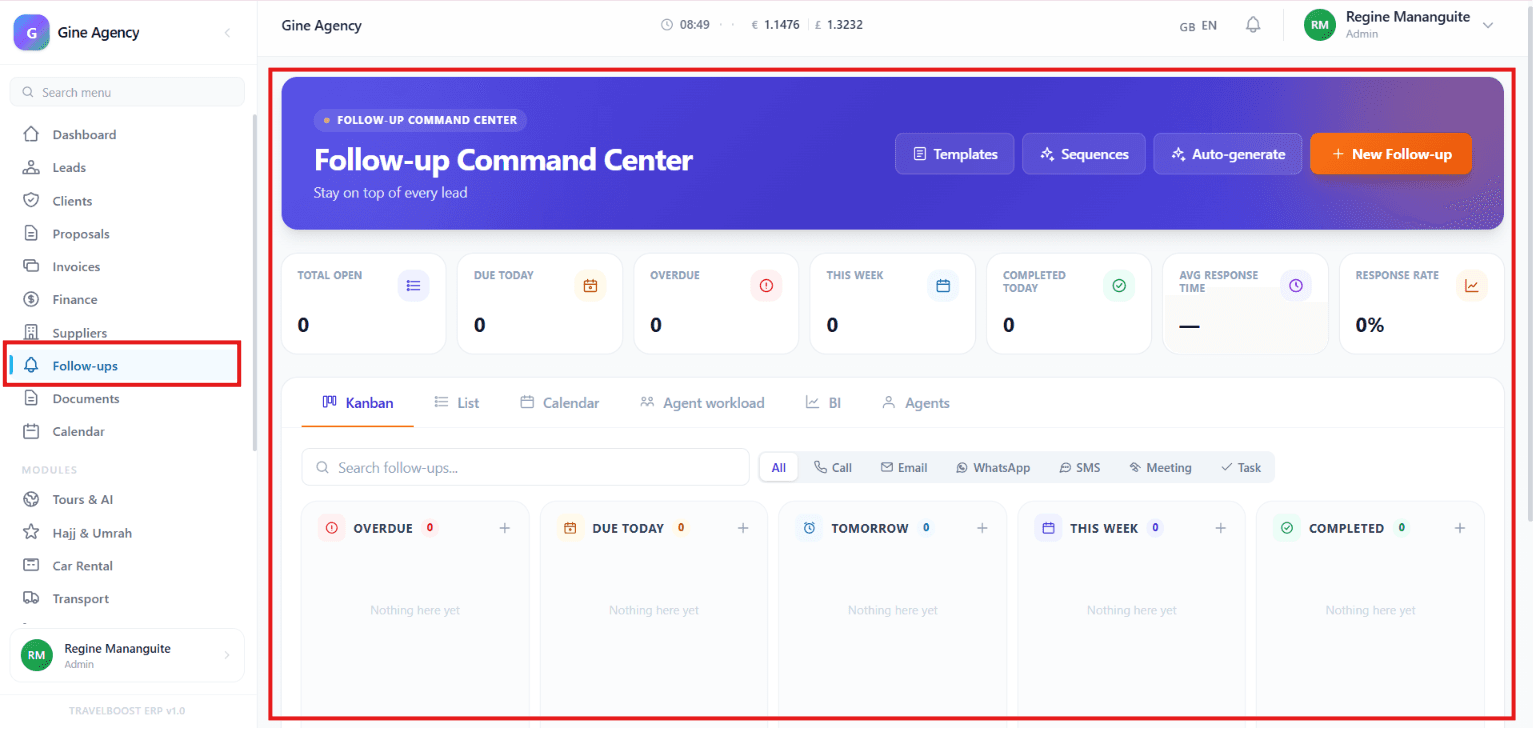
What You'll See on This Page
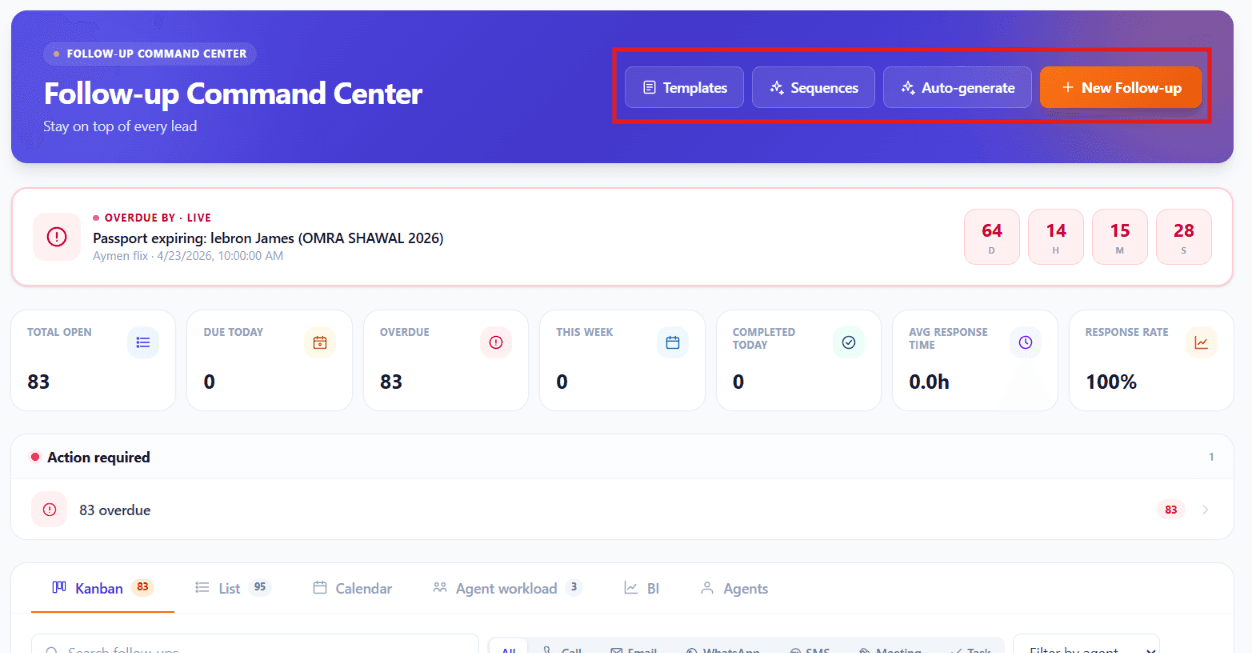
Templates, Sequences, Auto-generate, and New Follow-up
The quick action buttons at the top of the dashboard provide fast access to commonly used follow-up tools.
Templates
Create and use reusable message templates for emails, SMS, and WhatsApp communications. Each template can include personalisation variables ({{customer_name}}, {{destination}}, {{trip_date}}) so messages feel personal even at volume.
Sequences
Build automated follow-up workflows that send messages or create tasks based on predefined schedules. A typical proposal-follow-up sequence: send proposal → wait 3 days → send WhatsApp "any questions?" → wait 4 days → create call task for senior agent → wait 7 days → final email.
Auto-generate
Automatically create follow-up tasks based on customer activities, booking milestones, or pipeline stage changes. E.g. "lead enters Qualified stage → create call task within 2 hours", "proposal sent → schedule WhatsApp follow-up in 3 days".
+ New Follow-up
Create a follow-up manually for a specific lead or customer. Use this for one-off tasks: a walk-in meeting, a callback the customer specifically requested, a personal touch outside the automation.
Importance
These tools simplify repetitive work, ensure communication consistency, and help sales teams maintain regular contact with customers throughout the sales process.
Benefits
- Saves time through automation
- Ensures consistent communication — every customer gets the same care
- Reduces manual data entry
- Improves follow-up accuracy — no missed steps
- Keeps every lead engaged throughout the customer journey
- Increases the likelihood of converting leads into customers
Key Metrics
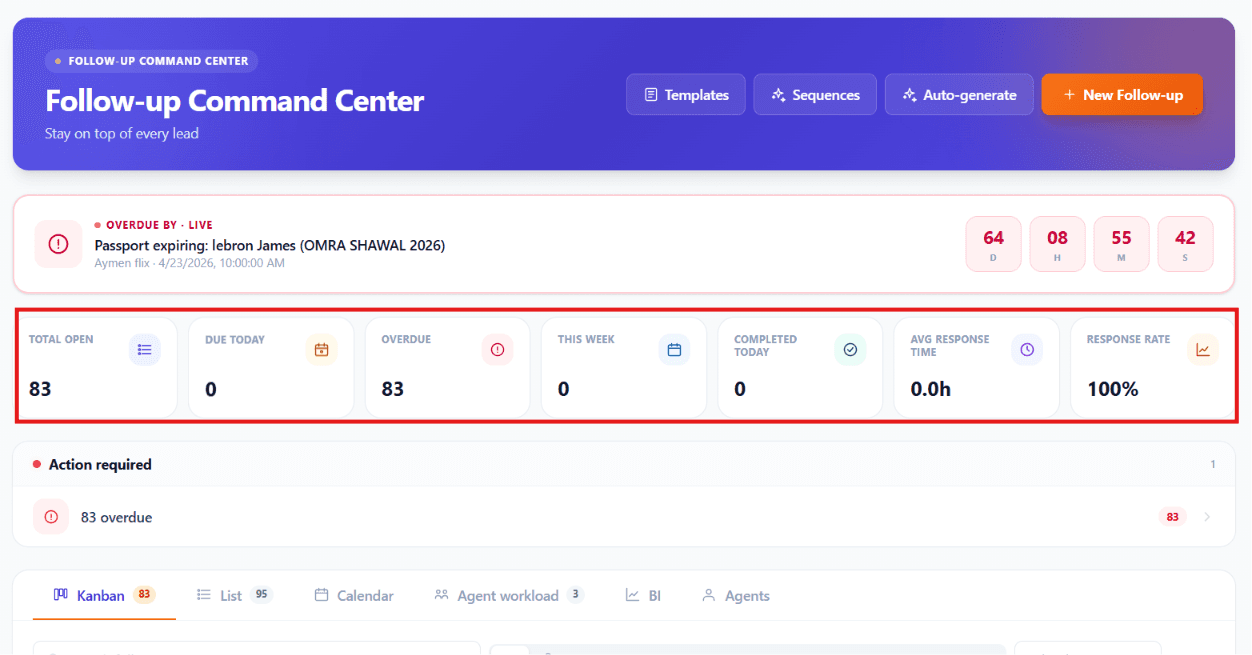
Real-time KPIs at the top of the dashboard:
- Total Open — The number of follow-ups that are still pending
- Due Today — Tasks that need to be completed today
- Overdue — Tasks that should have been completed but are past their due date
- This Week — Follow-ups scheduled for the current week
- Completed Today — Tasks that have already been finished today
- Average Response Time — How long it usually takes to respond
- Response Rate — Percentage of follow-ups that received a response
Importance
These metrics provide a real-time overview of your team's responsiveness and workload. Monitoring them helps ensure that every lead receives timely attention and that no important follow-up is overlooked.
Benefits
- Prioritises urgent and overdue tasks
- Improves response times — the single strongest predictor of conversion
- Increases customer satisfaction
- Helps managers monitor team productivity
View Options
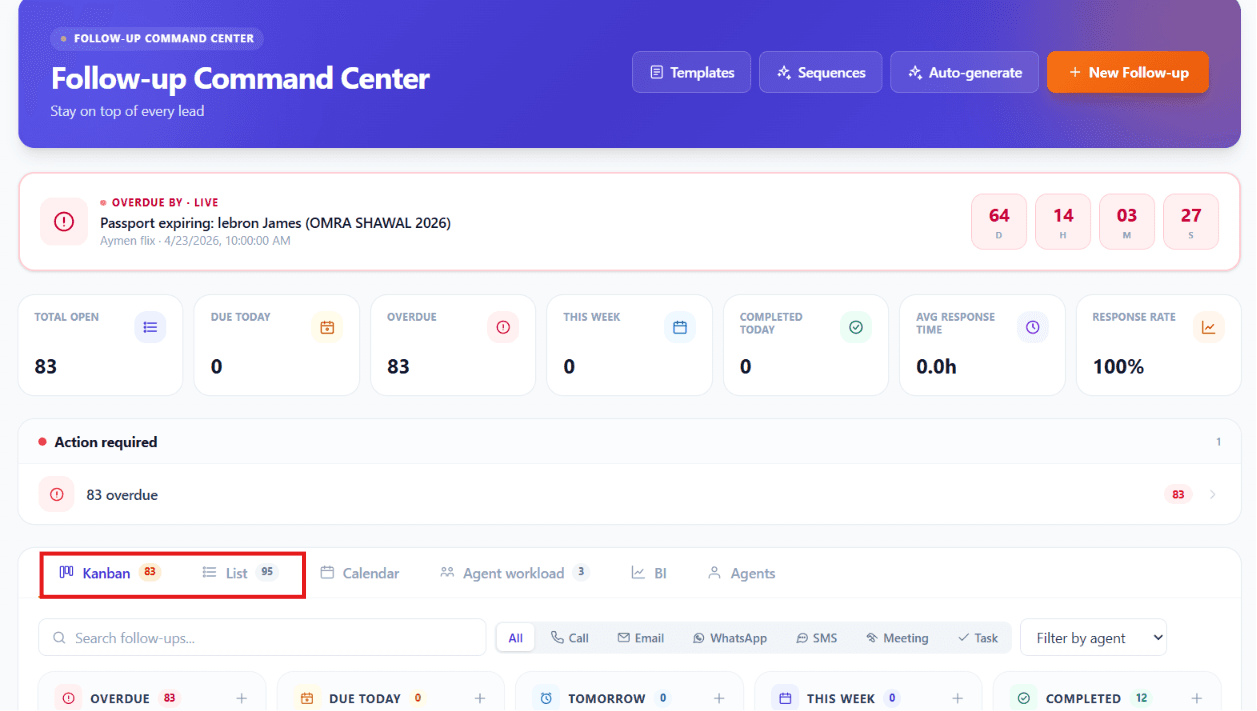
You can manage follow-ups in different ways:
| View | What it's for |
|---|---|
| Kanban | Organise tasks by status — drag between Pending / In Progress / Done |
| List | A flat, filterable, exportable list of all follow-ups |
| Calendar | Visual schedule by due date — see today / this week / this month |
| Agent Workload | How many tasks each team member has — balance the team |
| BI (Business Intelligence) | Performance metrics: response time, completion rate, conversion impact |
| Agents | Filter follow-ups by who they're assigned to |
Importance
Different view options allow users to organise tasks in the way that best fits their workflow while giving managers greater visibility into team performance and workload distribution.
Benefits
- Makes task management more efficient
- Simplifies scheduling and planning
- Balances workloads across team members
- Helps managers identify overloaded or underutilised agents
- Improves overall team productivity and accountability
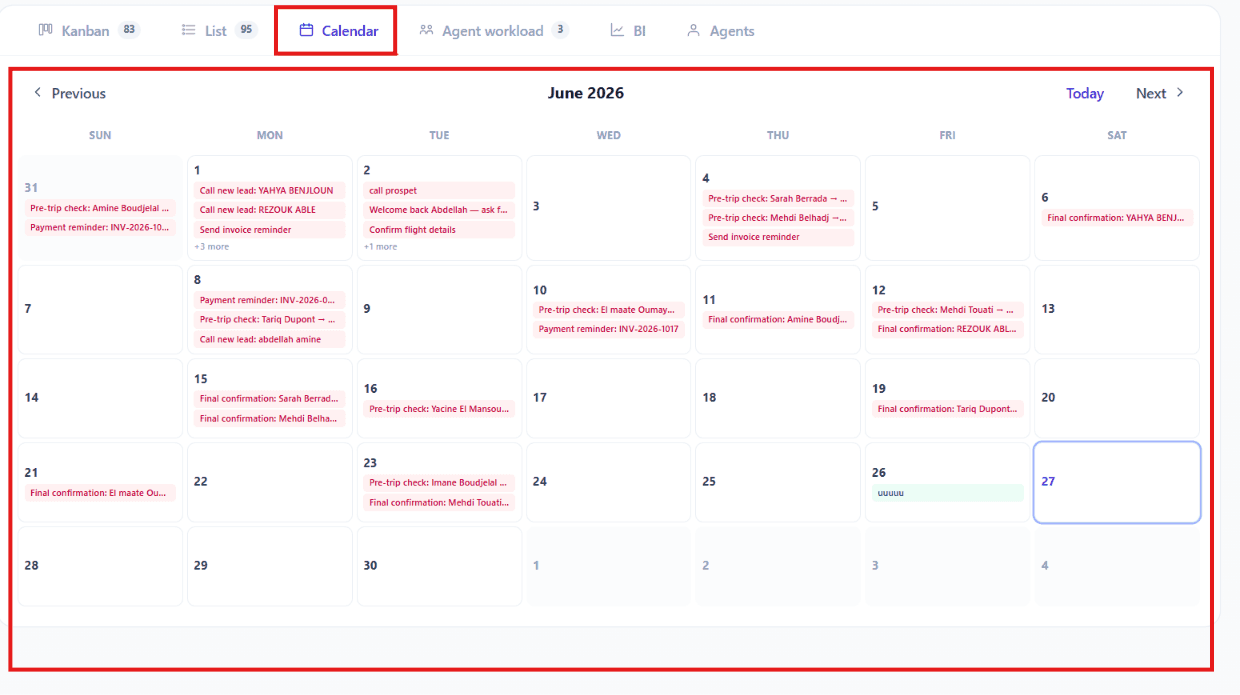
Calendar View
The Calendar view organises follow-ups according to their scheduled dates, giving users a timeline of upcoming activities.
Importance
The Calendar helps users plan their daily, weekly, and monthly schedules while preventing appointment conflicts and missed deadlines.
Benefits
- Improves scheduling and planning
- Prevents missed appointments
- Provides a clear timeline of upcoming activities
- Helps users manage their workload efficiently
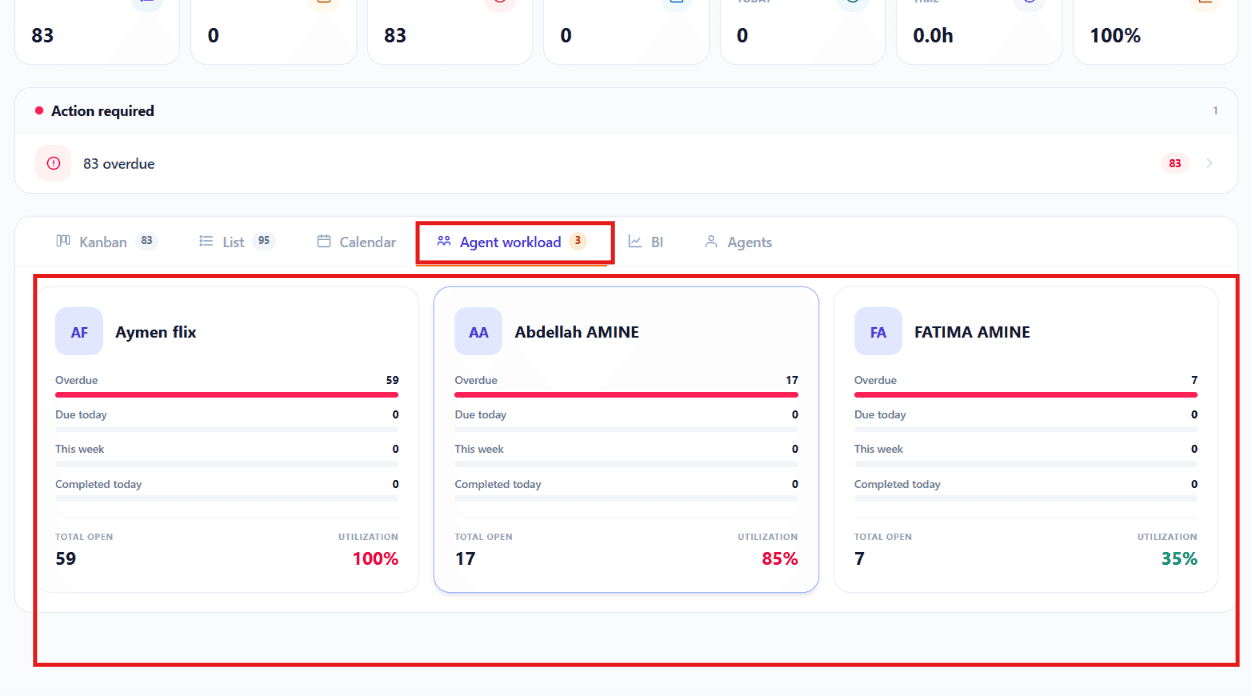
Agent Workload
The Agent Workload view displays the number of follow-up tasks assigned to each team member.
Importance
Monitoring workload ensures that tasks are distributed fairly among agents and helps managers identify overloaded or underutilised team members.
Benefits
- Balances workloads across the team
- Prevents employee burnout
- Improves resource allocation
- Helps managers monitor team productivity
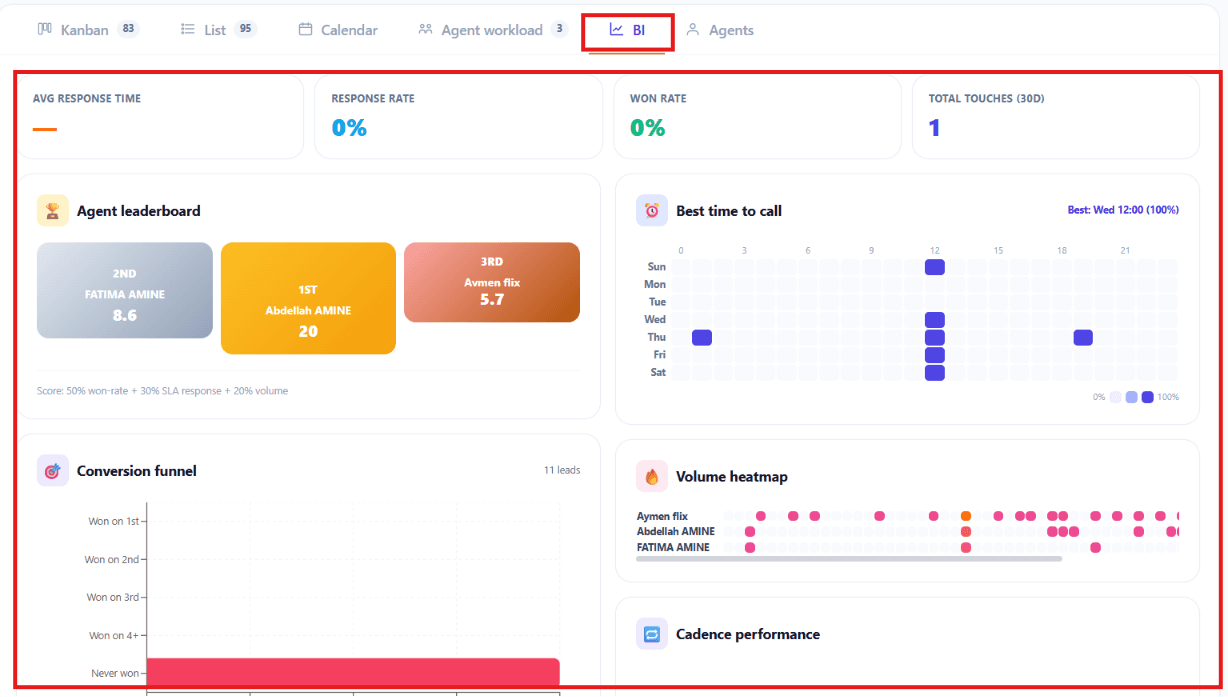
BI (Business Intelligence)
The BI view provides reports and analytics related to follow-up performance, response times, task completion, and team productivity.
Importance
Business Intelligence enables managers to make data-driven decisions by identifying trends, bottlenecks, and opportunities for improvement.
Benefits
- Measures follow-up performance
- Identifies process improvements
- Tracks team productivity
- Supports strategic decision-making
- Improves overall operational efficiency
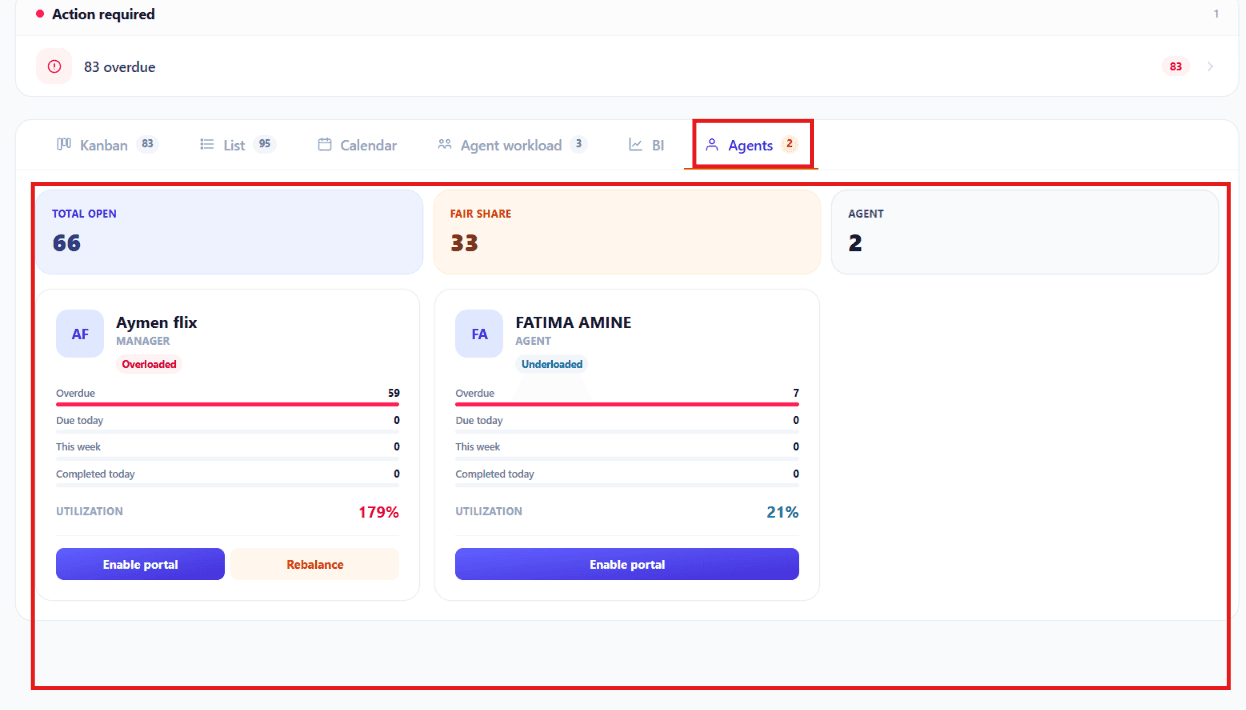
Agents
The Agents view allows users to filter and manage follow-ups assigned to specific team members.
Importance
Filtering by agent helps managers review individual performance, monitor assigned tasks, and ensure accountability.
Benefits
- Quickly locate an agent's assigned follow-ups
- Simplifies performance monitoring
- Improves accountability
- Enhances team collaboration
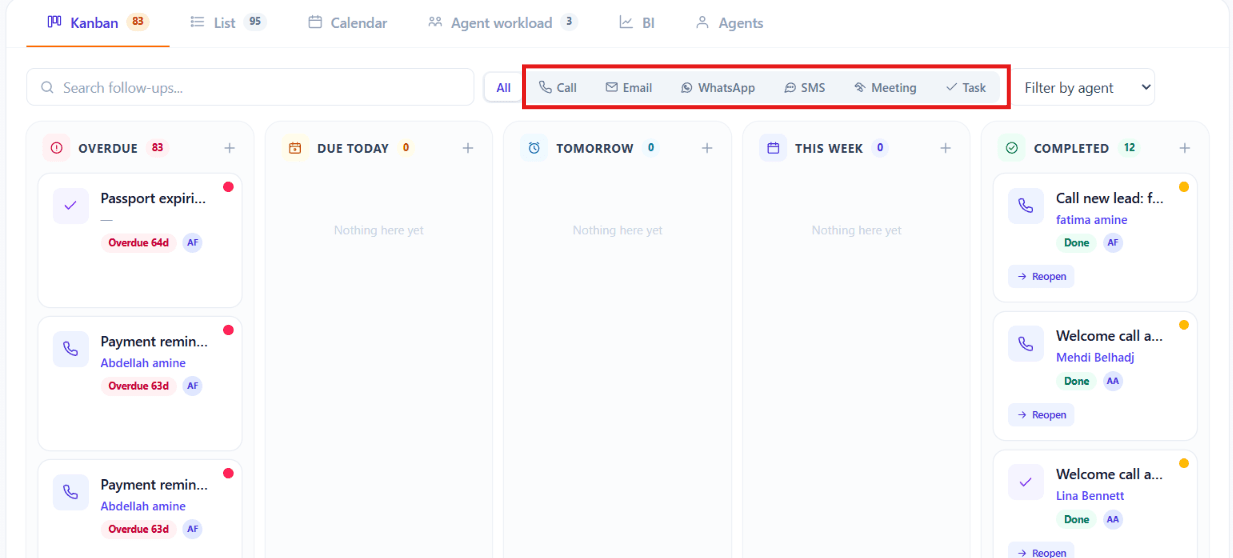
Communication Types
Follow-ups can include:
- 📞 Calls
- 📧 Emails
- 💬 WhatsApp messages
- 📱 SMS
- 🤝 Meetings
- ✅ Tasks
Importance
Recording all customer interactions in one place provides a complete communication history. This helps team members understand the customer's context immediately when they engage with them — no more "let me check what we last spoke about" awkwardness.
Benefits
- Keeps all customer communications organised
- Creates a complete interaction history
- Improves collaboration between team members — anyone can pick up the conversation
- Prevents duplicate or missed follow-ups
- Enhances customer relationships through consistent communication
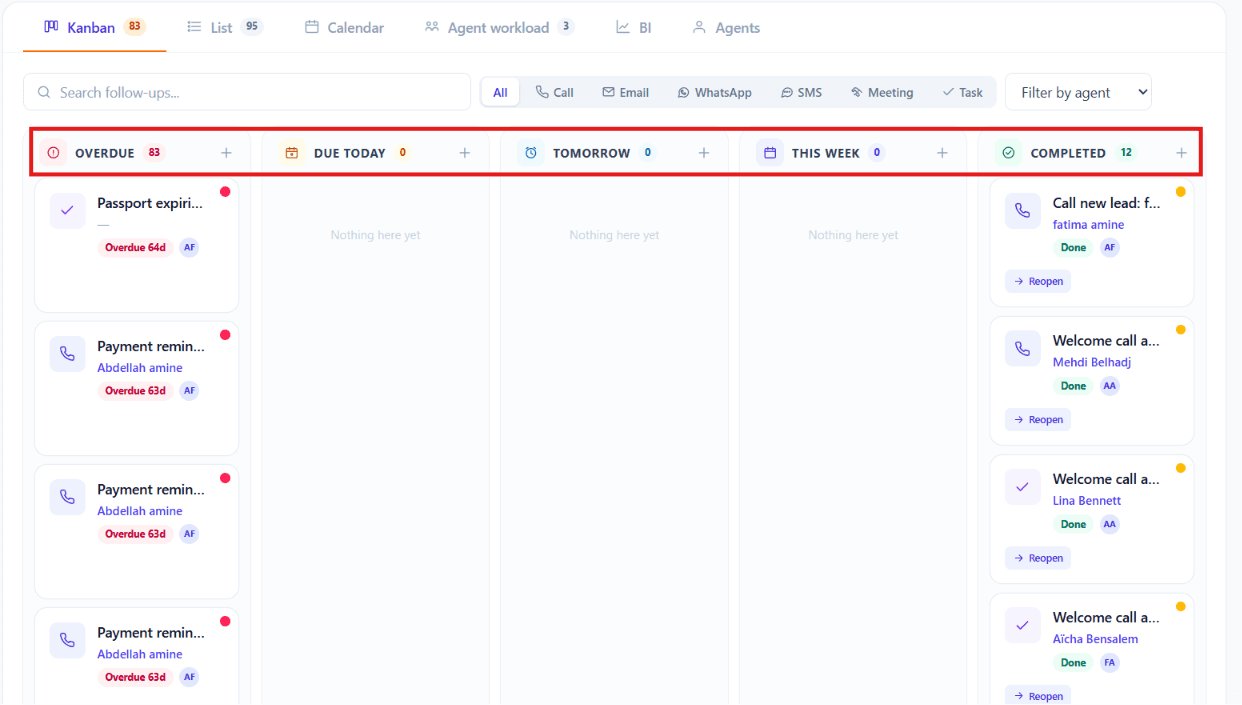
Task Categories
Follow-ups are grouped by timeline:
- Overdue — Past due and need immediate attention
- Due Today — Must be completed today
- Tomorrow — Scheduled for tomorrow
- This Week — Planned for later in the week
- Completed — Already finished
Creating a Follow-Up
To create a one-off follow-up for any lead or customer, click + New Follow-up.
- Choose type
Call / Email / WhatsApp / SMS / Meeting / Task — drives the icon and the channel automation.
- Set subject
A short label that summarises the task (e.g. Confirm Italy departure date).
- Due date + time
When the task should be completed. The system reminds the assigned agent at the configured cadence.
- Assigned to
Which agent owns this task. Defaults to you if unset.
- Related to
Link to a lead, customer, proposal, or booking — this pulls context into the follow-up view and back-references on the related record.
- Notes + priority
Context for the agent picking it up + priority (Low / Normal / High / Urgent) drives sort order and visual emphasis.
Frequently asked questions
Can I send WhatsApp messages from follow-ups?
Yes — once WhatsApp Business is connected (via Twilio, Vonage, or 360dialog), follow-up type WhatsApp sends through your business number with delivery + read receipts. You can use templates so messages feel personal even at volume.
What's the difference between a Sequence and an Auto-generate?
A Sequence is a multi-step chain you design (message → wait 2 days → message → wait 3 days → task). Auto-generate creates a single follow-up automatically when a specific event fires (proposal sent → follow-up created in 3 days). Use both together: auto-generate to start a sequence the moment a lead enters a stage.
How do I prevent follow-ups from being sent outside business hours?
In Settings → Communication → Quiet hours, set the time window per channel. Messages scheduled outside the window queue and send when it opens — you never wake a client at 3am.
Can I see which agent is overloaded?
Yes — switch to Agent Workload view. It shows open follow-ups per agent with overdue counts. Managers can drag-and-drop reassign in one click.
Does response time data flow into Pipeline Analytics?
Yes — average response time becomes a key Pipeline Analytics metric. Slow response times correlate strongly with lost deals, so this is one of the most powerful coaching tools managers have.