
Proposals — Creating and Tracking Quotes
Build branded travel proposals with day-by-day itineraries, AI generation, profit-margin tracking, and one-click PDF generation.
The Proposals section is where you create and manage the quotations or travel packages that you send to potential clients or customers. It helps you track whether a proposal is still being prepared, has been sent, accepted, rejected, or has expired — and gives you complete visibility into your pipeline value at any moment.
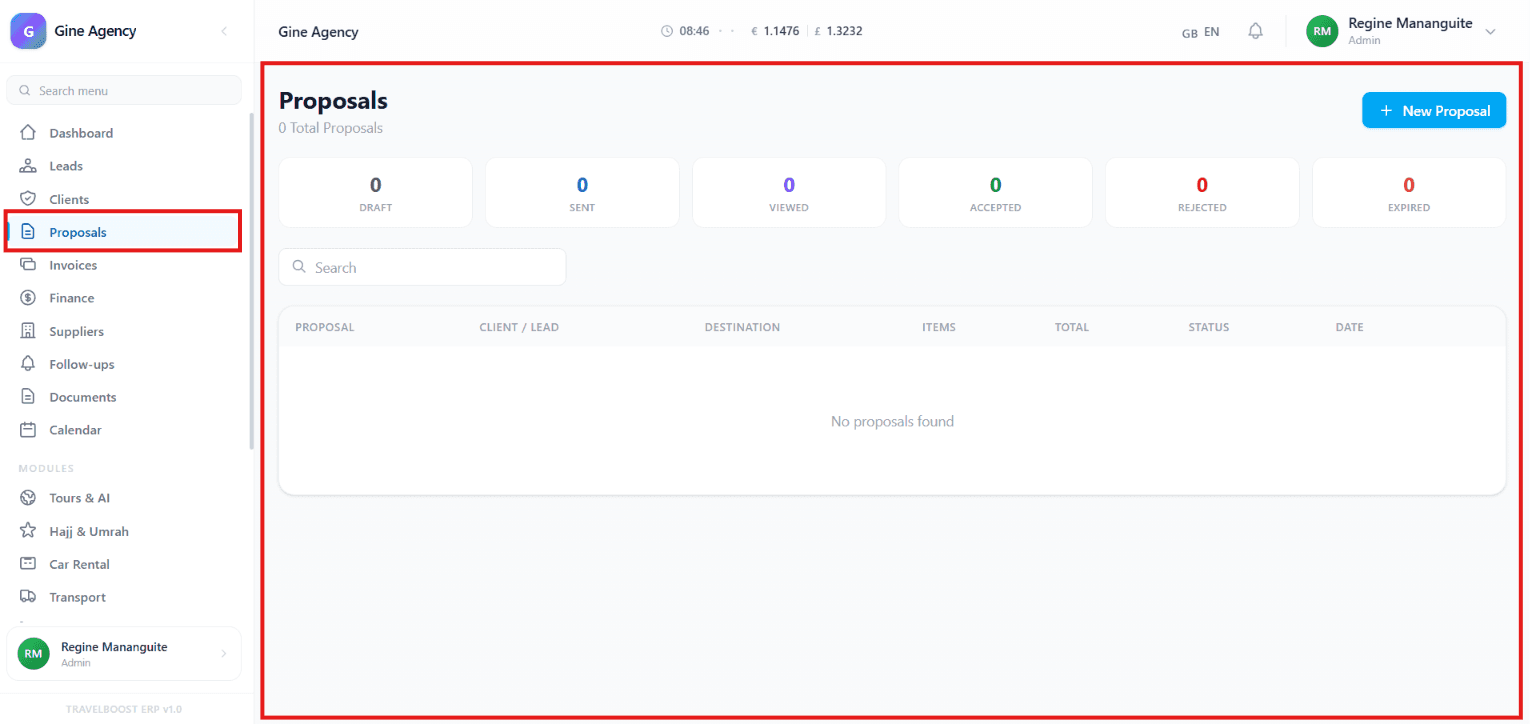
What You'll See on This Page
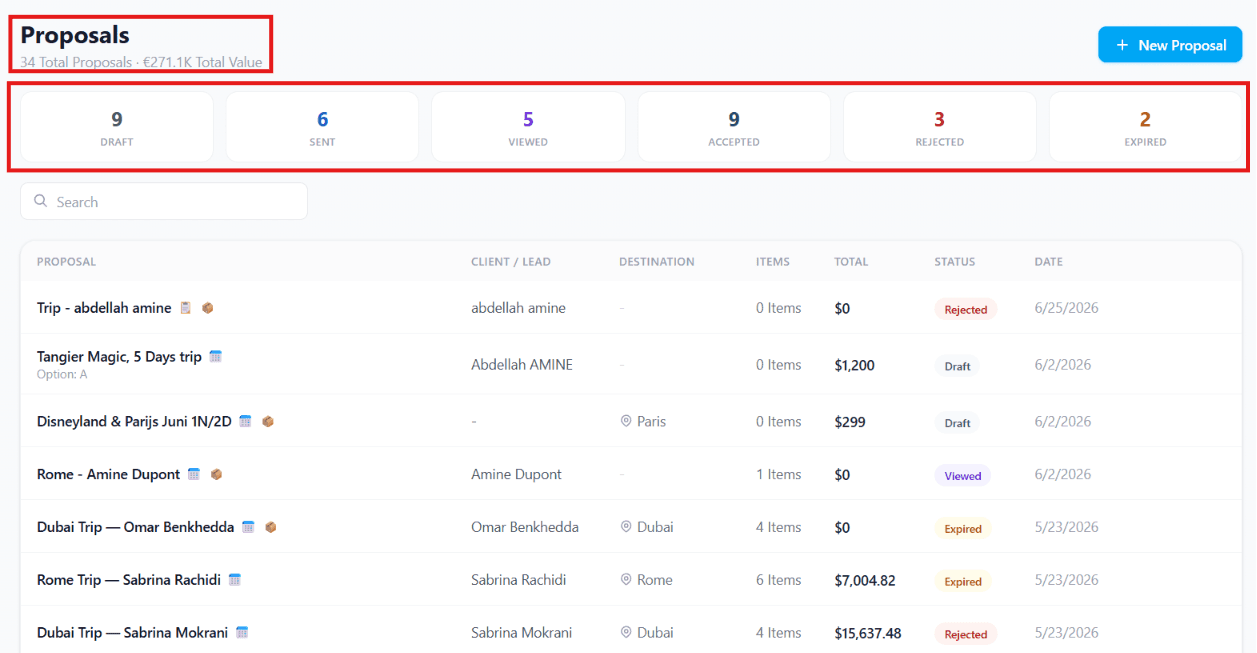
At the top of the page, status filters let you slice the proposal pipeline by stage:
- Draft — Proposals that are still being prepared and haven't been sent yet
- Sent — Proposals that have already been sent to clients
- Viewed — Proposals that clients have opened or viewed (tracked automatically)
- Accepted — Proposals that have been approved by clients (ready to convert to a booking)
- Rejected — Proposals that clients have declined (with loss-reason tracking)
- Expired — Proposals that are no longer valid (past their expiry date)
Why these statuses matter
Each status tells you a different story about your sales cycle. Draft → Sent measures your team's productivity. Sent → Viewed measures the strength of your subject line / WhatsApp message. Viewed → Accepted is your real conversion rate. Rejected with reason is your improvement roadmap.
Proposal List
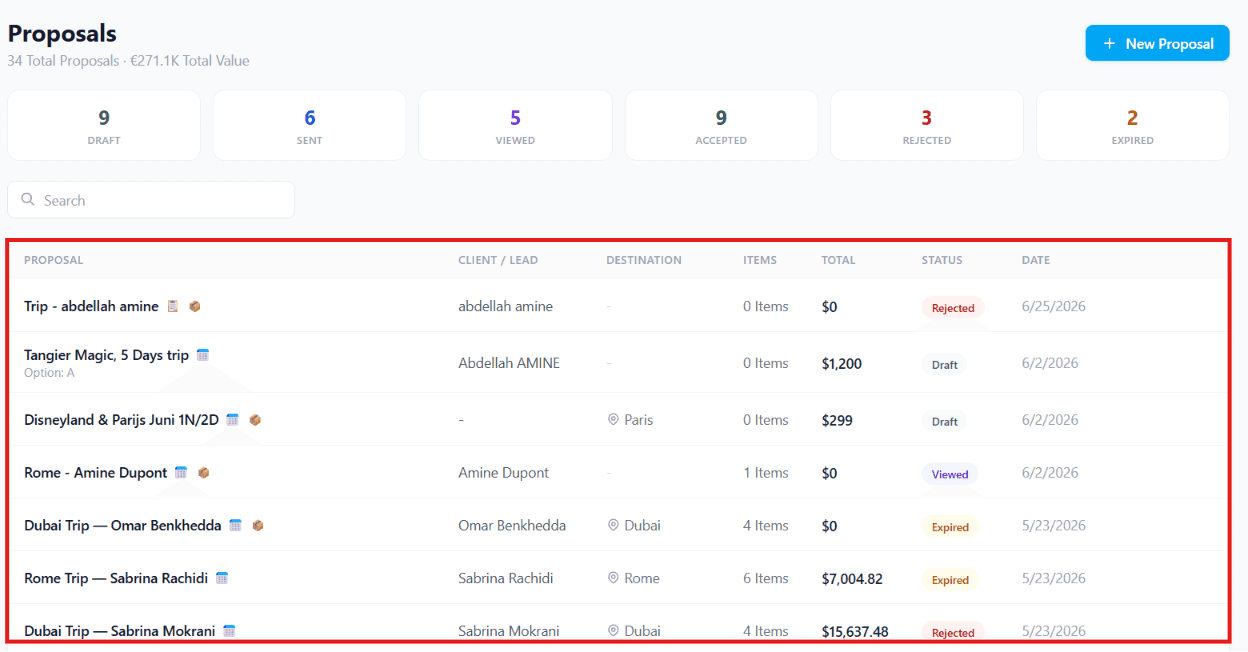
The table below shows details for each proposal, including:
| Column | What it shows |
|---|---|
| Proposal Name | The title of the proposal (e.g. Paris Getaway for Smith Family) |
| Client or Lead | The customer this proposal is for |
| Destination | Primary travel destination |
| Items Included | Quick badges: flights, hotels, tours, transfers, activities |
| Total Cost | Final price the client pays |
| Status | Current pipeline stage |
| Date Created | When the proposal was first drafted |
Create a New Proposal
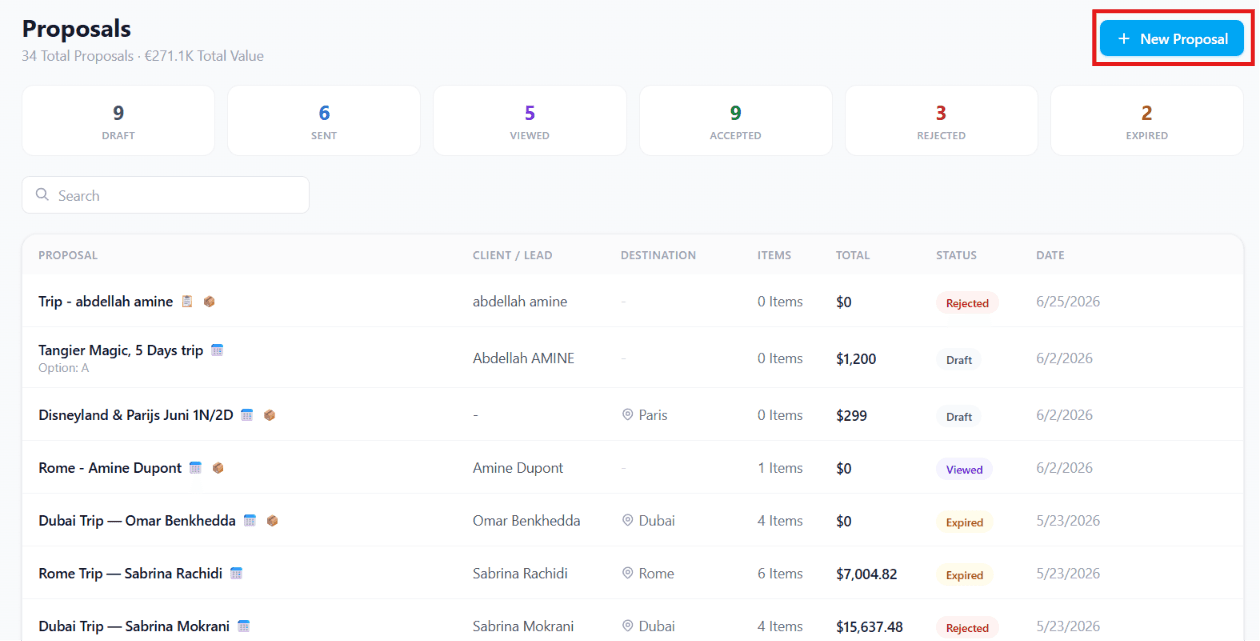
To create a new proposal, click the + New Proposal button located in the upper-right corner of the page.
A New Proposal window will open where you can enter the proposal details.
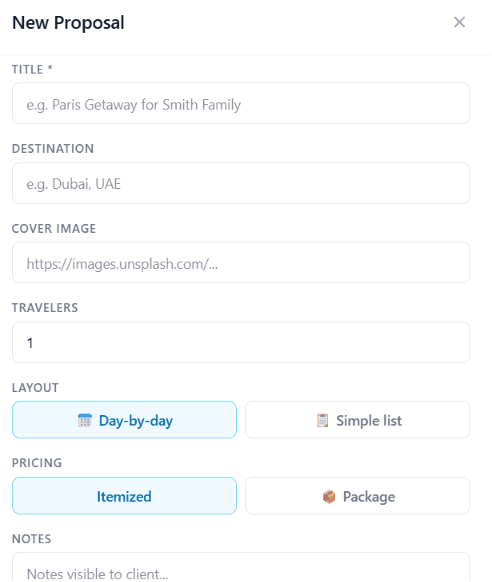
Complete the following fields:
- Title (Required)
Enter a descriptive title for the proposal (e.g. Paris Getaway for Smith Family). This appears on the PDF, the public shareable link, and in your pipeline list.
- Destination
Specify the travel destination (e.g. Dubai, UAE). Used in client-facing copy and analytics.
- Cover Image
Paste the URL of the cover image you want to use for the proposal. The first thing the client sees when they open it — pick something evocative.
- Travelers
Enter the total number of travellers included in the proposal. Drives per-person pricing and capacity checks against supplier allotments.
- Layout
Select how the itinerary will be displayed:
- Day-by-day — Organises the itinerary by each day of the trip with hero image per day. Best for multi-day tours.
- Simple List — Displays the itinerary as a flat list. Best for short trips or transfer-only quotes.
- Pricing
Choose the pricing format:
- Itemized — Displays a detailed breakdown of every cost. Builds trust on high-ticket sales.
- Package — Displays a single all-in price. Best for commodity products where the client doesn't want to think about line items.
- Notes
Add any additional notes or information that will be visible to the client (cancellation policy summary, what to bring, dress code for religious sites, etc.).
After completing all the necessary fields, proceed to the next step to continue building your proposal.
Proposal Details
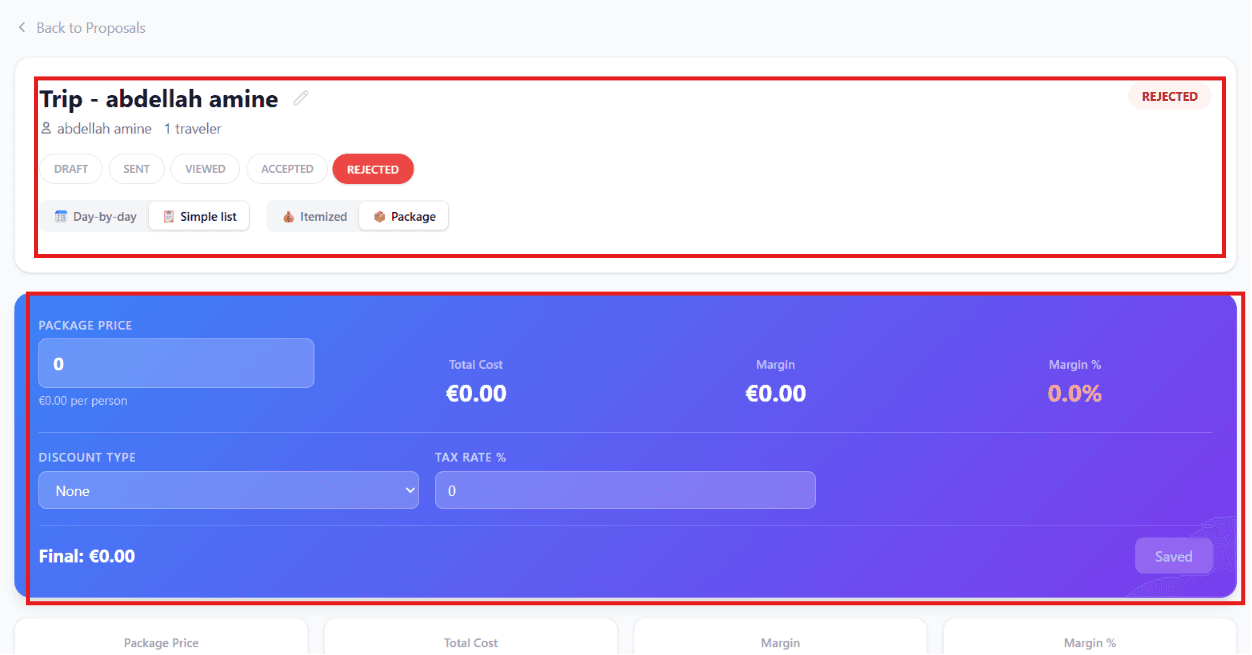
When you click on a proposal name, you are taken to the Proposal Details page, where you can manage every aspect of your travel quotation before sending it to your customer.
The Proposal Details page includes:
- Edit Proposal — Update the proposal name, traveller information, and package details at any time
- Proposal Status — Track your proposal through different stages, including Draft, Sent, Viewed, Accepted, and Rejected, so you always know its current status
- Proposal Formats — Display your itinerary in Day-by-Day, Simple List, Itemized, or Package view, depending on how you want to present your travel proposal
- Pricing Management — Set your package price, apply discounts, configure tax rates, and automatically calculate the final selling price
- Profit & Margin Tracking — View your total cost, profit margin, and margin percentage to help ensure every proposal is profitable
- Save Changes — Save your pricing updates and proposal changes instantly, keeping all calculations accurate and up to date
View and Edit Your Proposal
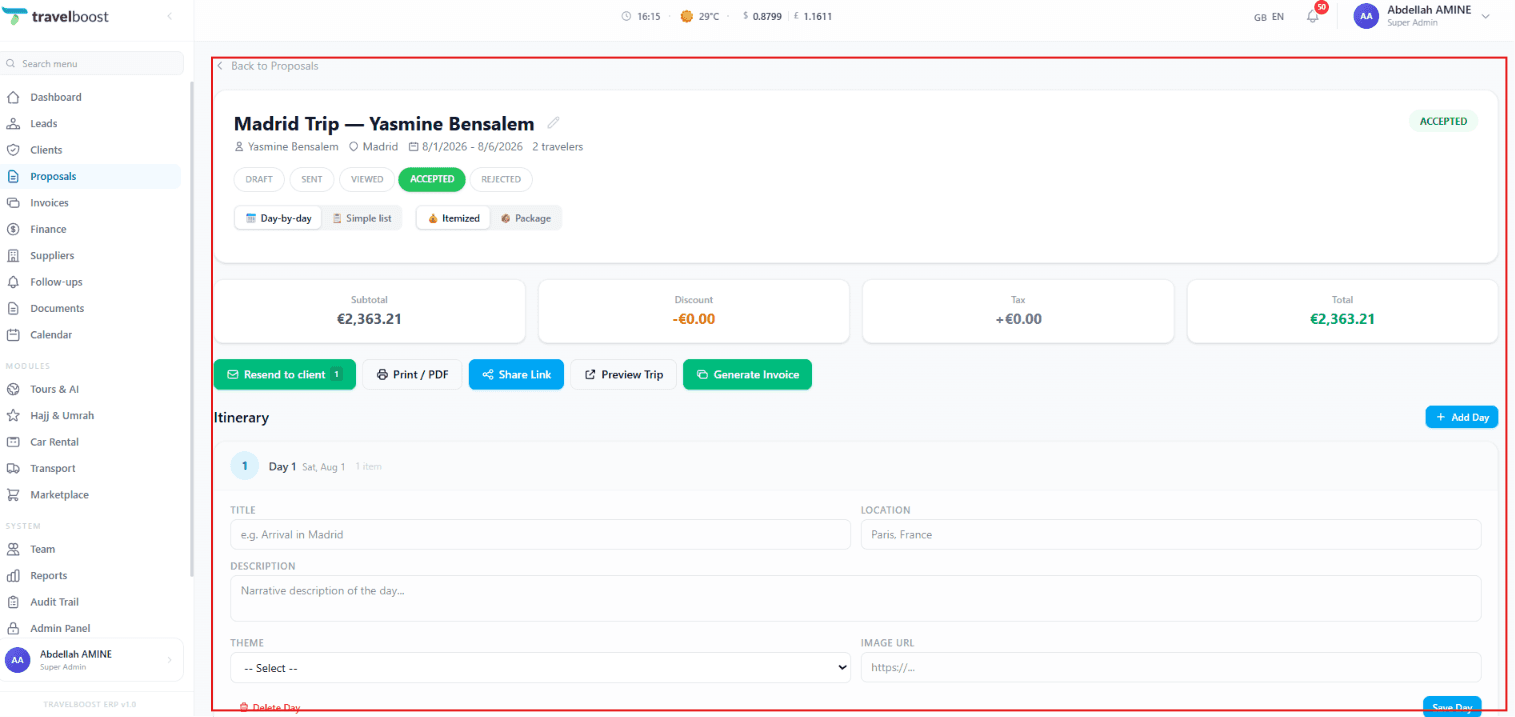
Once you have created your proposal, you will be redirected to the proposal details page where you can review, edit, and manage all aspects of the itinerary.
At the top of the page, you will find the proposal summary, which includes:
- Proposal Title — Displays the name of the proposal and the assigned client
- Travel Details — Shows the destination, travel dates, and the total number of travellers
- Proposal Status — Indicates the current status (Draft, Sent, Viewed, Accepted, or Rejected) — the current status is highlighted
- Layout & Pricing — Displays the selected itinerary layout (Day-by-day or Simple List) and pricing type (Itemized or Package)
- Pricing Summary — Provides an overview of the proposal's financial details:
| Field | What it shows |
|---|---|
| Subtotal | The total of all line items before discount and tax |
| Discount | Any discount applied (flat or percentage) |
| Tax | Calculated tax on the discounted subtotal |
| Total | Final amount the client pays |
Action Buttons
Below the pricing summary are several action buttons that allow you to manage the proposal:
- Resend to Client — Sends the proposal to the client again
- Print / PDF — Generates a printable version or PDF of the proposal
- Share Link — Creates a shareable link that you can send to the client (no login required for them to view)
- Preview Trip — Opens a preview of the proposal as the client will see it
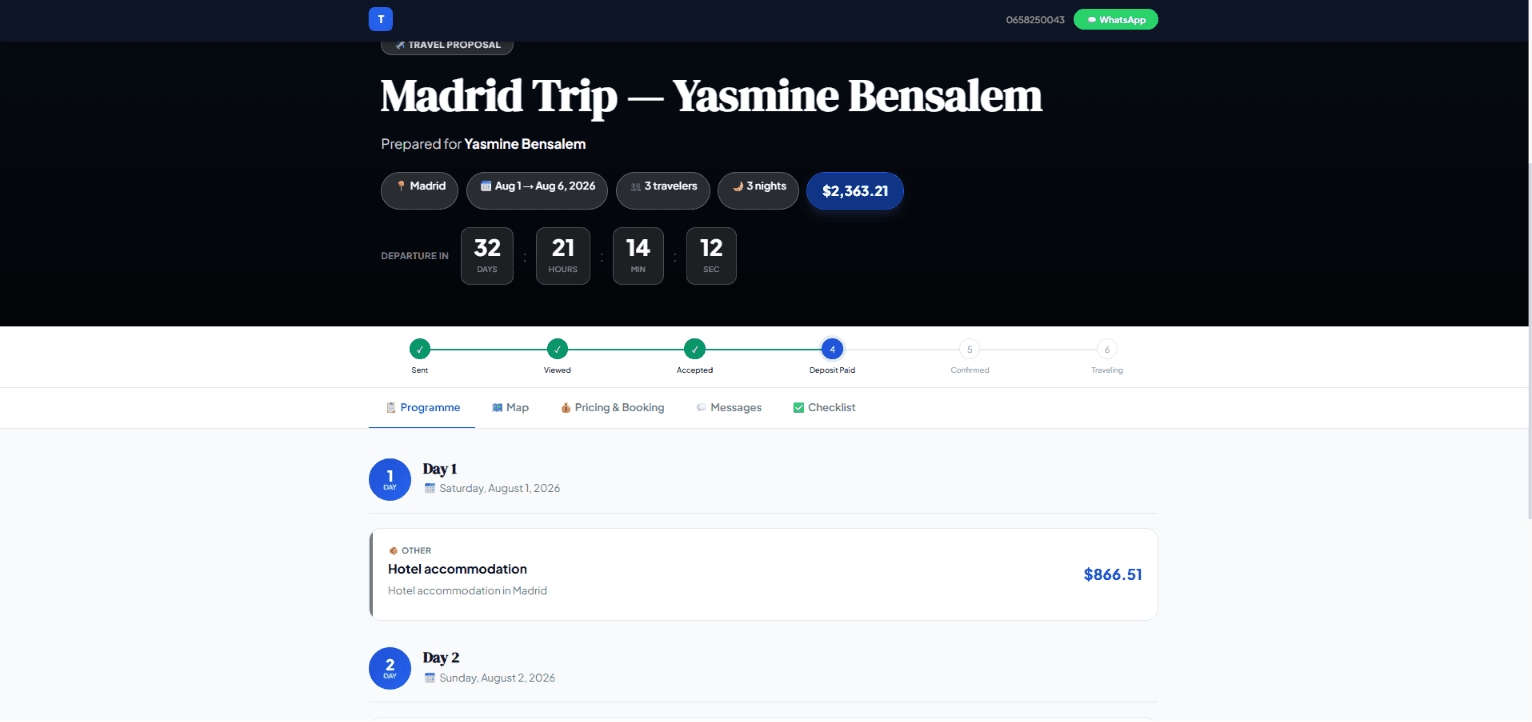
- Generate Invoice — Creates an invoice based on the proposal. Use this the moment the client says yes.
Why these actions matter
The Share Link is the single highest-leverage feature here. Instead of attaching a PDF to an email (which sits in a folder, hard to track), you send a clickable link. The system tracks when the client opened it, how long they spent on each section, which days they viewed twice, and whether they clicked Accept. That telemetry tells you which clients are seriously considering versus politely ignoring.
Building the Itinerary
The Itinerary section allows you to organise the trip day by day.
For each day, you can enter the following information:
| Field | Purpose |
|---|---|
| Title | A short title for the day's activities (e.g. Arrival in Madrid) |
| Location | Specify where the activities will take place |
| Description | Provide a detailed overview of the day's itinerary |
| Theme | Select a theme that best matches the day's activities (cultural / beach / adventure / religious) — drives icon + colour |
| Image URL | Add an image URL to display a representative photo for the day |
To include additional travel days, click the + Add Day button located on the right side of the itinerary section. After adding a day, fill in the same fields for each one.
Continue adding days until the complete travel itinerary has been created. Once finished, you can preview, share, print, or generate an invoice from the proposal.
Pro tip — reorder by drag
The day cards have a drag handle on the left. Reorder days by dragging — useful when a client comes back with "actually, can we do the desert tour on day 4 instead of day 2?" Two seconds vs rewriting the proposal.
Frequently asked questions
How long does it take to build a proposal?
For a typical 7-day multi-day tour: 10–15 minutes with the AI-assisted builder, or 25–40 minutes manually. Compared to 90+ minutes in Word + Excel for the same quality.
Can the client accept a proposal digitally?
Yes — when you Share Link to a proposal, the client can review it on any device and click Accept directly. The system records their digital signature with timestamp, which converts the proposal to a billable booking and auto-generates the first invoice.
Can I duplicate a proposal for a different client?
Yes — from any proposal, click Duplicate. The system copies the itinerary, pricing, and notes; you choose the new client and travel dates. Perfect for selling the same package to multiple families.
Does the AI builder really save time?
Yes — give it a destination, traveller count, and a rough budget, and it drafts the entire day-by-day itinerary with hotels, transfers, activities, and meals using your existing supplier rates. You then edit the draft. Most agents report 60–80% time savings.
What happens when a proposal expires?
Proposals have an Expiry field (default: 14 days from creation). Past expiry, the public link shows a polite "this offer has expired, please contact us" message instead of the proposal. You can re-activate or duplicate to refresh.