Team — Users, Roles & Permissions
Manage team members, invite new users, assign roles, monitor login activity, and control access permissions.
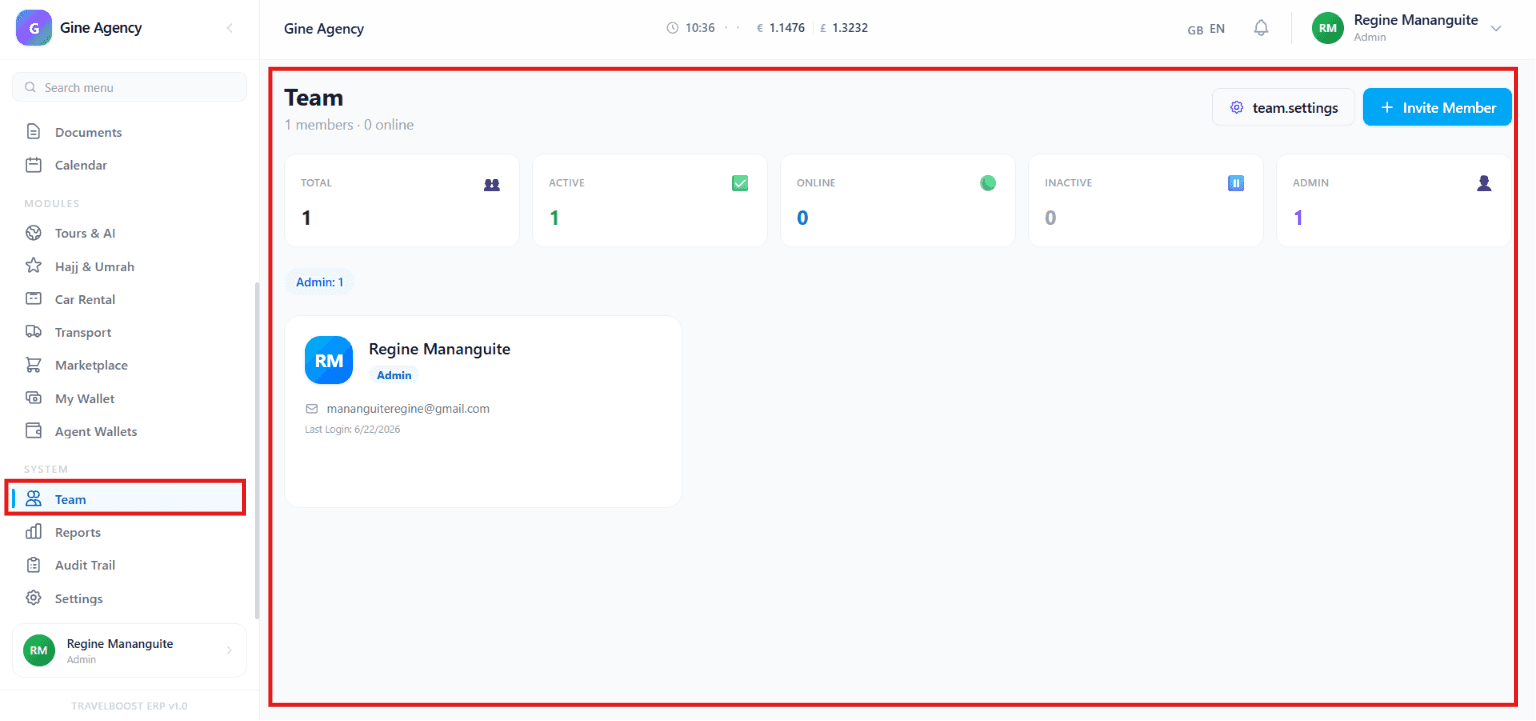
The Team section allows you to manage all users within your organisation. It provides an overview of team member activity, status, and roles, helping administrators efficiently manage staff, monitor performance, and control access permissions across TravelBoost.
What You'll See on This Page
- Total — The total number of team members added to the system
- Active — Team members whose accounts are currently active and can access the platform
- Online — Team members who are currently logged in and using the system
- Inactive — Team members whose accounts have been disabled or are not active
- Admin — The number of users with administrator-level permissions
Why these numbers matter for your agency
Total vs Active tells you how many accounts you're paying for that aren't being used (cancel or reassign). Online during business hours is your live workforce. Admin count should be small (3-5 max) — too many admins is a security risk.
Team Member Information
Each team member card displays important details, including:
- Profile Avatar — User initials or profile image
- Name — Team member's full name
- Role — Assigned permission level (e.g. Admin, Agent, Staff)
- Email Address — Registered email account
- Last Login — The most recent date the user accessed the system
Team Management Options
The Team section provides tools to manage users efficiently:
- Invite Member — Add a new team member by sending an invitation
- Team Settings — Configure team permissions, roles, and access settings
- View Team Members — See all users currently associated with the organisation
- Manage Roles — Assign or update user responsibilities
- Monitor Activity — Track login activity and account status
How to invite a new team member
- Click + Invite Member
The invitation form opens. Enter the member's email address.
- Choose a role
Pick from default roles (Admin, Agent, Staff) or any custom role you've created. The role determines exactly what the user can see and do once they log in.
- (Optional) Add a personal message
A short note that appears in the invitation email — useful when adding multiple people in a row.
- Send invitation
The member receives an email with a setup link. The link is valid for 7 days.
- Member completes setup
They click the link, set their password, optionally configure 2FA. As soon as they save, they appear in your Team list as Active and Online.
Team Status Categories
Team members may fall into the following categories:
- Active — User account is enabled and available for use
- Online — User is currently logged into the platform
- Inactive — User account is disabled or no longer active
- Admin — User has full administrative access and management privileges
Access and Permissions
Depending on their assigned role, team members may have access to:
- 👤 User Management
- 📄 Documents
- 📅 Calendar
- 💰 Wallets and Finance
- 📊 Reports
- ⚙️ Settings and Configuration
- 🤝 Client and Lead Management
How role design helps your agency
Generic CRMs ship with two roles: admin and user. That's useless when your finance person shouldn't see customer messages, and your sales agent shouldn't see profit margins. TravelBoost roles are granular per-module. Design them around how your team actually works:
- Sales agent → leads, customers, proposals, follow-ups (read+write), invoices (read-only), no finance
- Finance officer → finance, invoices, reports (read+write), customers (read-only)
- Operations manager → suppliers, hajj, tours, transport, car-rental (full), finance (read-only)
- Marketing lead → marketing, blog CMS, reports (read+write), no customer data
- Hajj operations → hajj-only with full access
Team Administration Features
Administrators can:
- Invite new users
- Edit team member information
- Assign or change roles
- Enable or disable accounts
- Monitor login activity
- Manage team-wide settings and permissions
Frequently asked questions
How do I invite a new team member?
Click + Invite Member, enter their email and assign a role. They receive an invitation email with a setup link. They click, set their password, optionally configure 2FA, and they're in. The whole process takes under 2 minutes.
Can I customise the roles beyond the defaults?
Yes — in Team Settings → Roles, clone any default role (Admin, Agent, Staff) and customise per-module permissions. You can create as many custom roles as you need (e.g. "Hajj Operations Manager", "Finance Read-Only").
What happens when a team member leaves?
Click their card → Deactivate. Their sessions revoke immediately. Their historical data (notes, mutations, audit trail) remains intact and attributed to them — never deleted. Reactivate later if they return.
Does TravelBoost support 2FA?
Yes — TOTP-based 2FA (Google Authenticator, Authy, 1Password, etc.). Configure in Team Settings → Security. You can require it for all users, or just for admin roles.
Can I see who's online right now?
Yes — the Online filter shows team members currently logged in. Useful for "who's available to handle this urgent inquiry?" situations.