
Invoices — Managing Customer Billing and Payments
Create, send, and track customer invoices with automatic payment status, multi-currency support, branded PDFs, and overdue alerts.
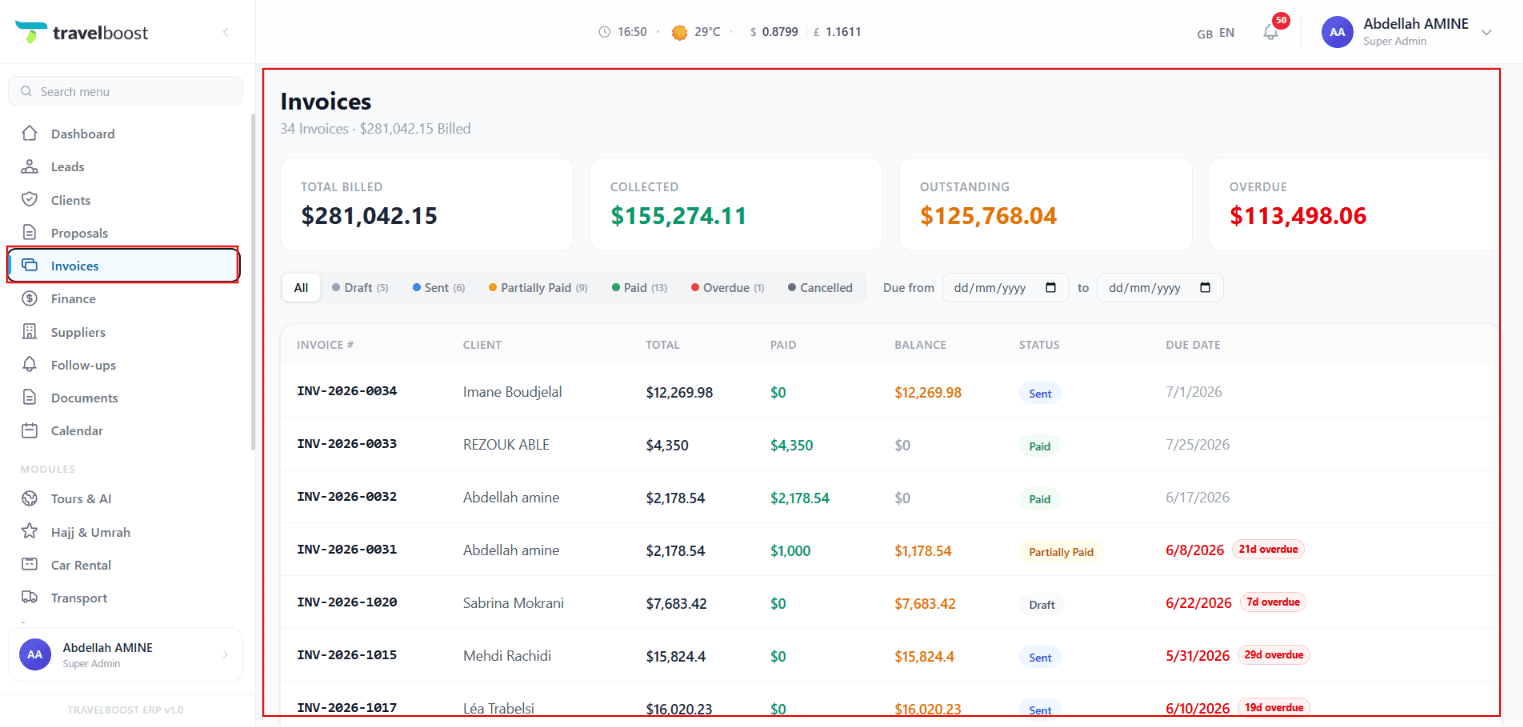
The Invoices section helps you create, manage, and track customer invoices. It provides a clear overview of billing activity, payment collection, outstanding balances, and overdue invoices, ensuring accurate financial management — the operational core of how money actually arrives in your bank account.
Importance
The Invoices section is essential for maintaining an organised and efficient billing process. It ensures that every invoice is recorded, tracked, and monitored from creation to payment. By keeping all billing information in one place, businesses can reduce errors, improve payment collection, and maintain accurate financial records. It also helps identify unpaid and overdue invoices quickly, allowing timely follow-ups that support healthy cash flow and better financial decision-making.
Benefits
Using the Invoices section helps you:
- Keep all customer invoices organised in one location
- Track payments and outstanding balances with ease
- Improve cash flow by monitoring unpaid and overdue invoices
- Reduce billing errors with accurate invoice records
- Save time by quickly finding invoices using filters
- Maintain accurate financial records for reporting and audits
- Enhance professionalism by providing clear and well-managed customer billing
What You'll See on This Page

- Total Billed — The total value of all invoices created
- Collected — The total amount successfully received from customers
- Outstanding — The amount that is still unpaid and awaiting payment
- Overdue — The amount from invoices that have passed their due date
Benefit: This summary provides a quick snapshot of your business's financial performance, helping you understand how much revenue has been collected and what still needs attention.
Why these numbers matter
Total Billed is the size of your top-line. Collected is what actually moved. Outstanding is your accounts-receivable — money owed but not yet in the bank. Overdue is the warning light — if it keeps growing, you have a collection problem and your cash position is at risk.
Invoice Status Filters

You can filter invoices by their current status:
- All — Displays all invoices
- Draft — Invoices that have been created but not yet sent
- Sent — Invoices that have been sent to customers
- Partially Paid — Invoices with partial payments received
- Paid — Fully paid invoices
- Overdue — Unpaid invoices past their due date
- Cancelled — Invoices that have been cancelled and are no longer active
Benefit: Status filters help you quickly locate specific invoices, making it easier to manage billing, follow up with customers, and monitor payment progress.
Date Filters

- Due From — View invoices due from a selected start date
- Due To — View invoices due up to a selected end date
Benefit: Date filters help you focus on invoices within a specific payment period, making it easier to plan collections, review upcoming due dates, and generate reports.
Invoice List

The invoice table displays important billing information:
| Column | What it shows |
|---|---|
| Invoice # | Unique invoice reference number (auto-numbered) |
| Client | Customer associated with the invoice |
| Total | Total invoice amount |
| Paid | Amount already paid |
| Balance | Remaining amount due |
| Status | Current invoice status |
| Due Date | Payment deadline for the invoice |
Benefit: The invoice list provides all the essential details you need in one view, allowing you to monitor payment history, outstanding balances, and invoice status without opening each record individually.
Invoice Overview
After selecting Generate Invoice from the proposal page, the system creates an invoice that summarises all the services and costs associated with the trip. This page allows you to review, manage, and share the invoice with your client.
Invoice Information
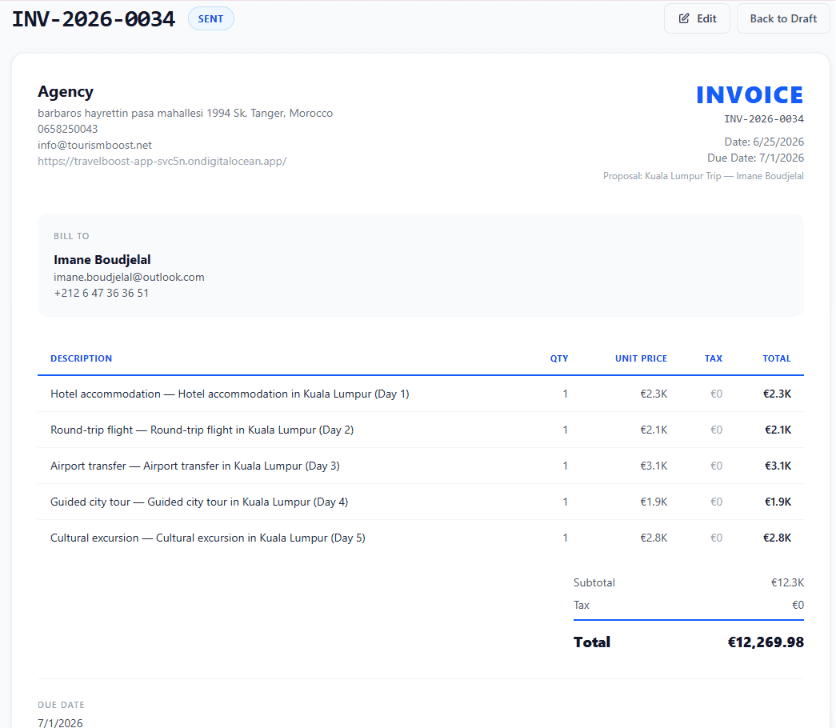
At the top of the page, you will find the invoice summary, which includes:
- Invoice Number — A unique reference number assigned to the invoice (auto-numbered, e.g. INV-2026-00042)
- Invoice Status — Displays the current status of the invoice (e.g. Sent, Draft, or Paid)
- Agency Information — Shows your agency's name, address, contact number, email address, and website
- Invoice Details — Displays the invoice date, due date, and the proposal associated with the invoice
- Client Information (Bill To) — Contains the client's name, email address, and contact number
Invoice Items
The invoice includes a detailed breakdown of all services added to the proposal. Each item displays:
| Field | Meaning |
|---|---|
| Description | The service or activity included in the itinerary |
| Quantity (Qty) | The number of units for each service |
| Unit Price | The cost of each item |
| Tax | Any applicable tax for the item |
| Total | The total amount charged for that service |
At the bottom of the itemised list, the invoice automatically calculates:
- Subtotal — The total amount before taxes or additional charges
- Tax — The total tax applied to the invoice
- Grand Total — The final amount the client is required to pay
Payment Tracking
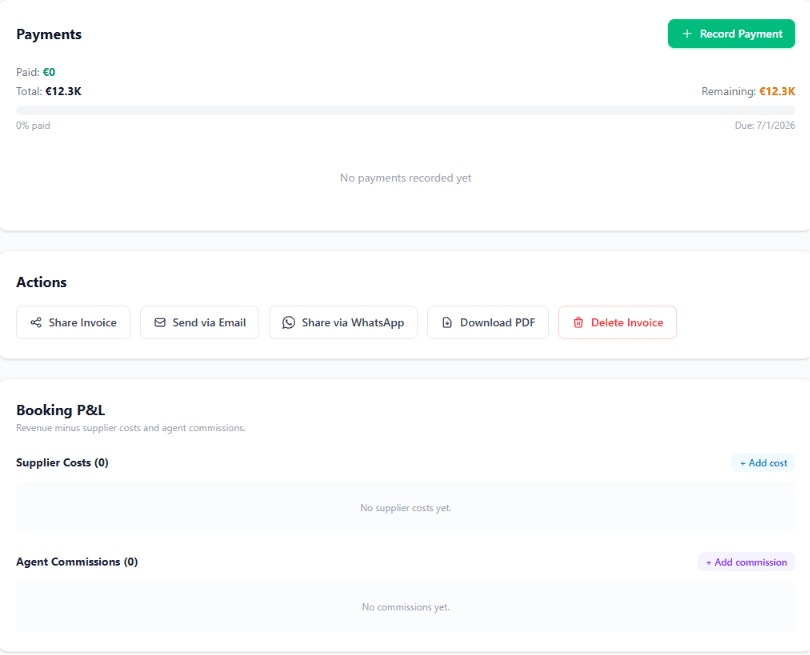
The Payments section allows you to monitor the payment status of the invoice. This section displays:
- Paid — The total amount the client has already paid
- Total — The full invoice amount
- Remaining Balance — The outstanding amount that is still due
- Payment Progress Bar — A visual indicator showing the percentage of the invoice that has been paid
- Due Date — The payment deadline
To record a payment received from the client, click the + Record Payment button. Once a payment is added, the payment summary updates automatically.
Recording a Payment
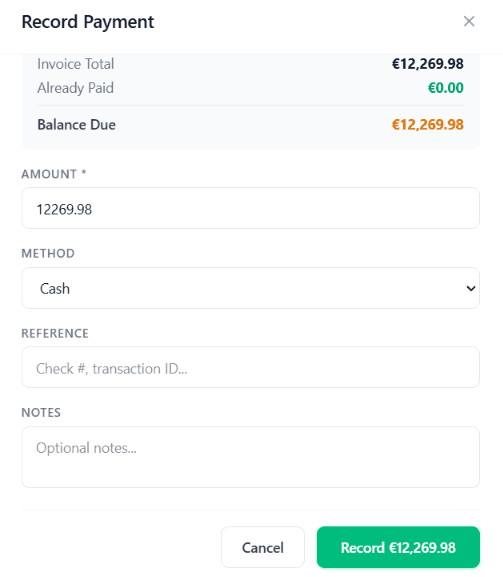
To record a payment received from the client, navigate to the Payments section of the invoice and click the + Record Payment button.
A Record Payment window will appear, displaying the current payment summary:
- Invoice Total — The total amount due for the invoice
- Already Paid — The amount that has already been paid by the client
- Balance Due — The remaining outstanding balance
Complete the following fields to record the payment:
- Amount (Required)
Enter the amount received from the client. The field is automatically populated with the remaining balance — useful when collecting the final instalment.
- Method
Select the payment method used: Cash, Bank Transfer, Credit Card, or another available option. Each method is tracked separately for reporting.
- Reference
Enter a payment reference such as a check number, transaction ID, or payment confirmation number. This is what you'll use later when reconciling against bank statements.
- Notes
Add any optional notes related to the payment for future reference (e.g. received via Western Union in Casablanca).
After entering all the required information, click Record Payment to save the payment.
Once the payment has been recorded, the invoice will automatically update:
- The Paid amount
- The Remaining Balance
- The Payment Progress percentage
- The invoice status, if the balance has been paid in full
This ensures that the invoice accurately reflects the client's payment history and outstanding balance.
Invoice Actions
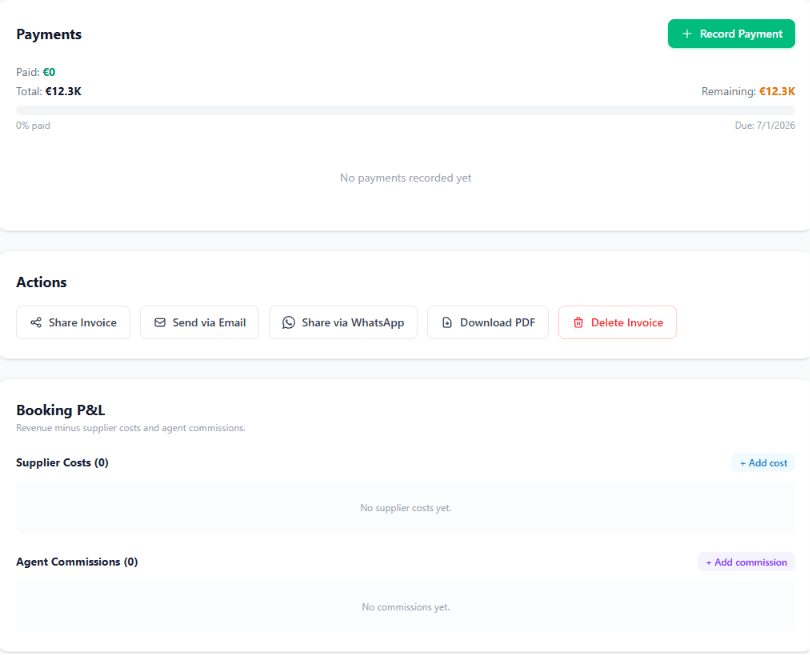
The Actions section provides several options for managing and sharing the invoice:
- Share Invoice — Generate a shareable link for the invoice. The client can view + pay directly from any device, no login needed.
- Send via Email — Email the invoice directly to the client. Comes with your branding and a payment link.
- Share via WhatsApp — Send the invoice through WhatsApp via your connected business number. The most-used channel for travel customers in MENA.
- Download PDF — Download a PDF copy of the invoice for printing or record keeping
- Delete Invoice — Permanently remove the invoice from the system (use with care — most jurisdictions require keeping invoice records for 7 years)
Why share-link beats email-attachment
Email attachments sit unopened in cluttered inboxes. A shared link does three things an attachment can't:
- Tracks whether the client opened it
- Updates automatically if you make a change (no resending)
- Pays directly online with one click (if your payment gateway is connected)
Booking Profit & Loss (P&L)
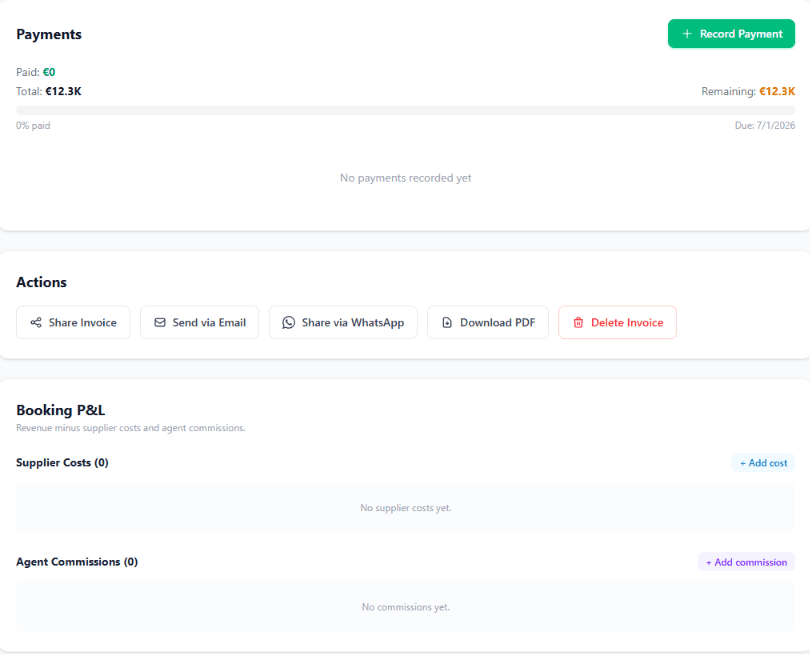
The Booking P&L section helps you monitor the profitability of the booking by tracking expenses and commissions.
This section includes:
- Supplier Costs — Record expenses paid to hotels, airlines, tour operators, transportation providers, or other suppliers
- Agent Commissions — Record commissions earned by agents by selecting + Add Commission
Tracking supplier costs and commissions provides a clearer view of the booking's overall profitability and financial performance.
Why per-booking P&L matters
Most agencies see "we made $X this month" but can't tell you which trips actually made money and which lost money. The Booking P&L turns that around: you know before discounting what the floor is, and after closing what the trip actually netted. Combined across all bookings, this rolls up into the Finance Command Center's real-time profit picture.
What You Can Do
- Create and manage customer invoices
- Track payments received
- Monitor outstanding balances
- Identify overdue invoices quickly
- Filter invoices by status and due date
- Keep billing records organised and up to date
Frequently asked questions
How are invoice numbers generated?
Auto-numbered per year, per agency: INV-{YYYY}-{NNNNN} (e.g. INV-2026-00042). The numbering is sequential and continuous — no gaps, no manual entry, fully compliant for VAT-registered agencies.
Can I edit an invoice after sending it?
Yes, but the system tracks the change history. When you resend, the client sees the latest version. For VAT compliance in jurisdictions that require it, use Issue Credit Note + Reissue instead of editing.
Can I send invoices via WhatsApp?
Yes — from Invoice Actions, click Share via WhatsApp. The system sends the public invoice link via your connected WhatsApp Business number. The client can view, download the PDF, or pay online directly from the link.
How do partial payments work?
Click + Record Payment, enter the amount received. The invoice automatically updates Paid amount, Remaining Balance, Payment Progress %, and status (Sent → Partially Paid). Repeat for each instalment until Paid in full.
Does the invoice show the booking's real profit?
Yes — open the Booking P&L section on any invoice. It lists every supplier cost you've attributed to this booking, every agent commission earned, and calculates net profit. Use it before discounting to know your floor.