
Supplier Rates, Contracts & Allotments
Rate cards by season, contract templates, blocked allotments with release windows, and supplier payables.
The Suppliers section helps you manage supplier information, contracts, allotments, payments, and RFQs (Request for Quotations). It provides a centralised directory for tracking supplier performance, spending, and business relationships — the operational backbone that determines what every product you sell actually costs you.
Why This Section is Important
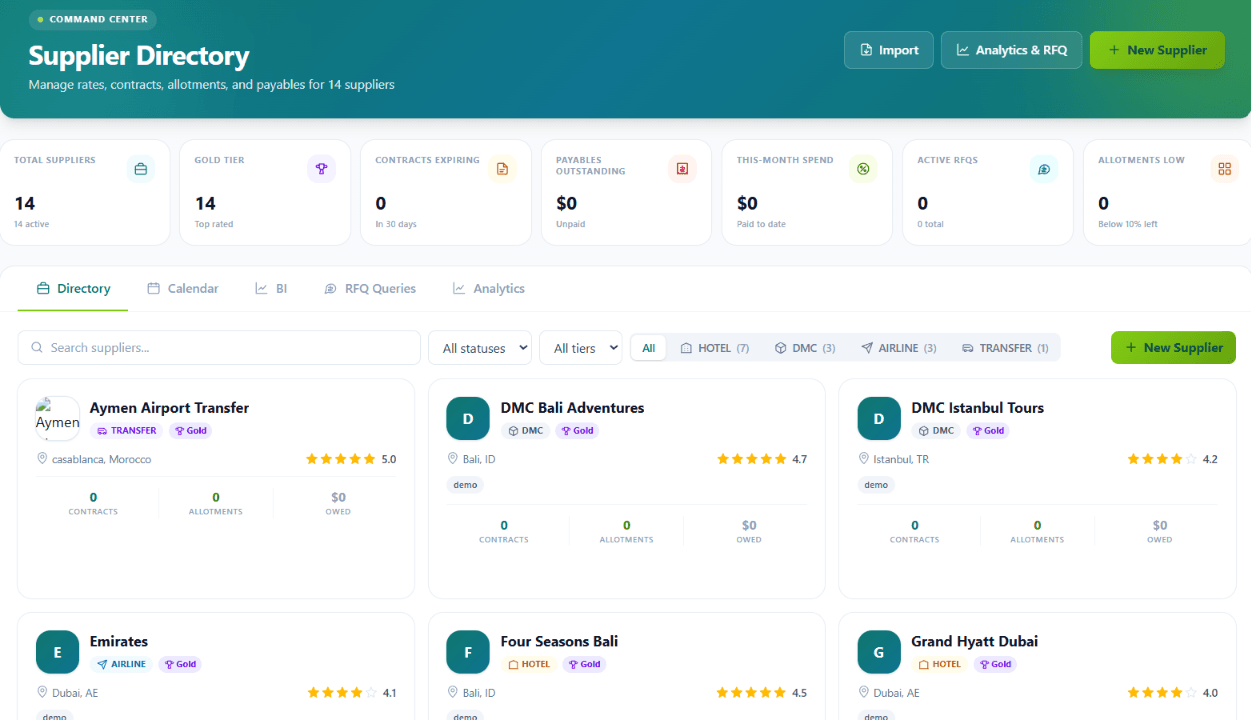
The Suppliers page serves as a centralised hub for managing all supplier-related information in one place. It helps businesses organise supplier records, monitor contracts, track spending, manage payments, and oversee procurement activities. By keeping everything accessible from a single page, users can make informed purchasing decisions, strengthen supplier relationships, and ensure procurement processes run smoothly.
Benefits
- Keeps all supplier information organised and easy to access
- Helps monitor supplier contracts and renewal dates to prevent disruptions
- Tracks outstanding payments and monthly spending for better financial control
- Simplifies the Request for Quotation (RFQ) process
- Monitors supplier allotments and availability
- Provides Business Intelligence (BI) insights to evaluate supplier performance and spending trends
- Reduces manual tracking and improves procurement efficiency
- Supports better decision-making through accurate supplier data and analytics
What You'll See on This Page

- Total Suppliers — Total number of suppliers registered in the system
- Gold Tier — Number of top-rated or preferred suppliers
- Contracts Expiring — Supplier contracts approaching their expiration date (so you can renegotiate before they lapse)
- Payables Outstanding — Amount owed to suppliers that is still unpaid
- This Month Spend — Total amount spent on suppliers during the current month
- Active RFQs — Number of open Request for Quotation (RFQ) requests
- Allotments Low — Suppliers with allotment availability below the defined threshold (act before you run out)
Why these numbers matter
Contracts Expiring is your renegotiation calendar — every contract you let lapse silently is one you forgot to renegotiate. Payables Outstanding is the bill you owe; mismanaging it is how suppliers stop sending you priority allotment. Allotments Low is the early warning for "we'll lose bookings to sold-out this month."
Quick Actions

- Import — Upload and import supplier records in bulk (CSV or Excel). The column-mapping wizard de-duplicates against existing suppliers automatically.
- Analytics & RFQ — Access supplier analytics and manage quotation requests
- + New Supplier — Add a new supplier to the directory
Navigation Tabs

- Directory — View and manage all supplier records
- Calendar — Track contract renewals, meetings, and supplier-related schedules
- BI (Business Intelligence) — Analyse supplier performance and spending trends
- RFQ Queries — Manage quotation requests and supplier responses
- Analytics — View detailed supplier reports and insights
Supplier Directory Tools

- Search Suppliers — Quickly find suppliers by name or keyword
- Status Filter — Filter suppliers based on their current status (active / inactive / on hold / blacklisted)
- Tier Filter — View suppliers by rating or tier level
- All Filter — Display all suppliers regardless of category
Viewing Supplier Details

Selecting a supplier from the Directory opens the supplier's dedicated profile page, providing a complete overview of its information, performance, and procurement activities.
Within the supplier profile, you can access many sub-sections:
Overview
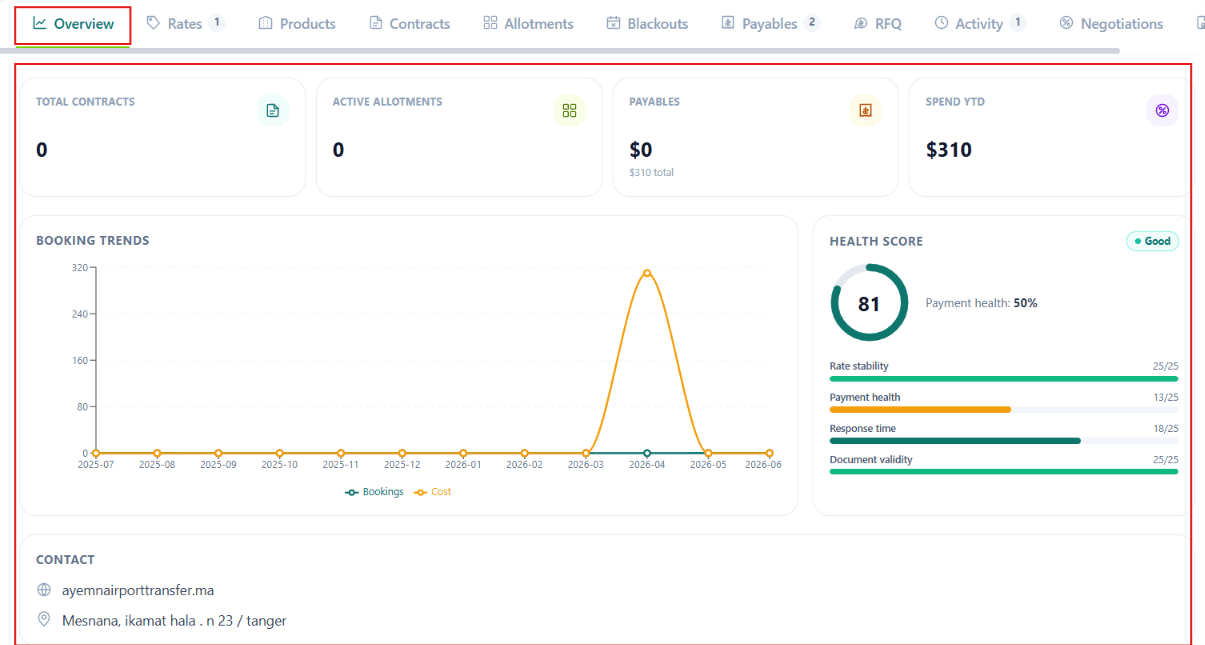
View key supplier metrics, including active contracts, active allotments, payables, year-to-date spend, booking trends, and the supplier's overall health score (a composite of payment timeliness, fulfilment rate, and price competitiveness).
Rates
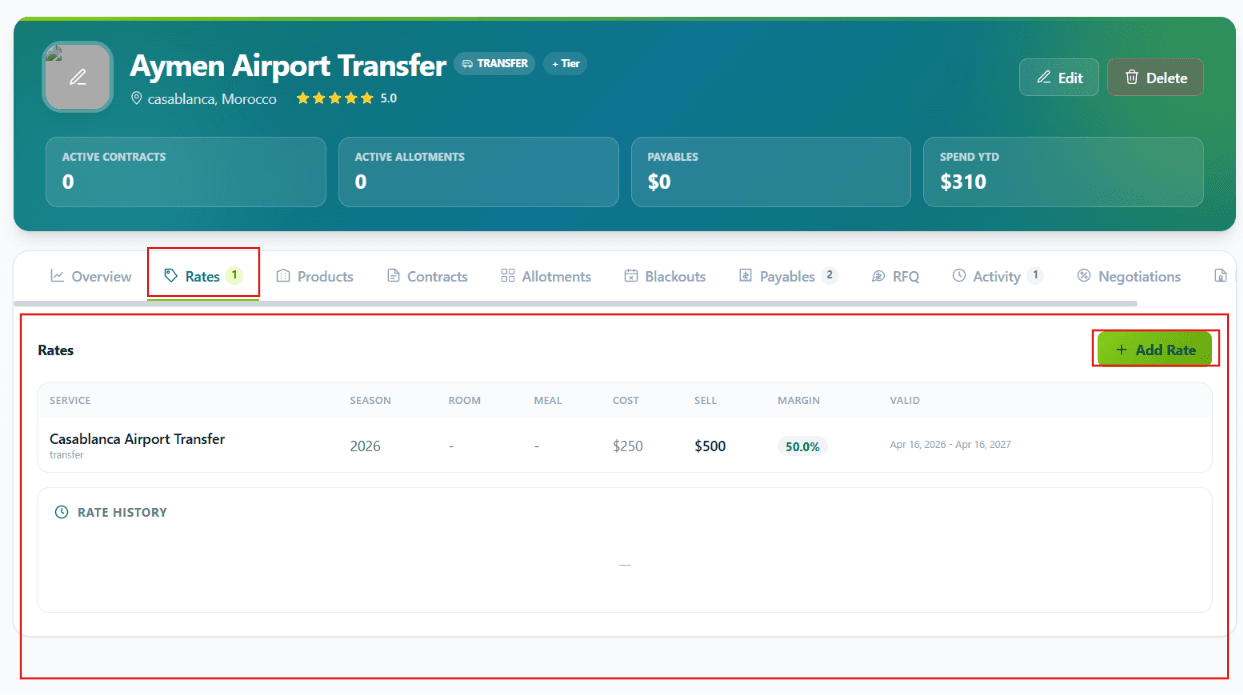
Manage and review the supplier's pricing and available rate plans. Rates can be seasonal (low / shoulder / high), product-specific (per hotel, per route, per service), and contract-linked.
Products
Manage the products or services offered by the supplier.
Adding a new product
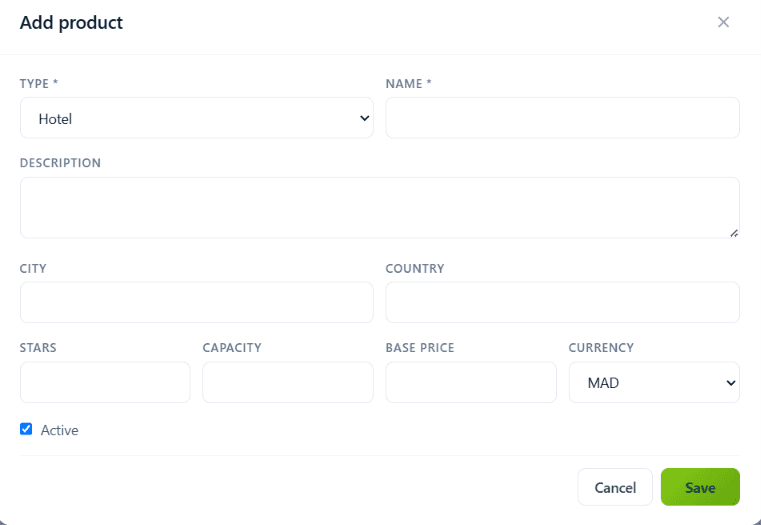
To add a new product, click the + Add Product button. An Add Product window will appear where you can enter the product details.
Complete the following fields:
- Type (Required) — Select the product or service type from the drop-down menu (e.g. Hotel, Transfer, Activity, Guide, Insurance)
- Name (Required) — Enter the name of the product or service
- Description — Provide a brief description, including any important features or details
- City — Enter the city where the product or service is available
- Country — Enter the country where the product or service is offered
- Stars — Specify the star rating, if applicable (commonly used for hotels)
- Capacity — Enter the maximum number of guests or participants the product can accommodate
- Base Price — Enter the standard price of the product or service
- Currency — Select the currency associated with the base price
- Active — Enable this option to make the product available for use in proposals, bookings, and other transactions. Uncheck if you want to keep the product inactive
After completing all the required fields, click Save to add the product to the supplier's product list. Once saved, the product is available for selection when creating proposals, itineraries, and other supplier-related transactions.
Contracts
Access supplier contracts, monitor their status, and track renewal dates.
Adding a new contract
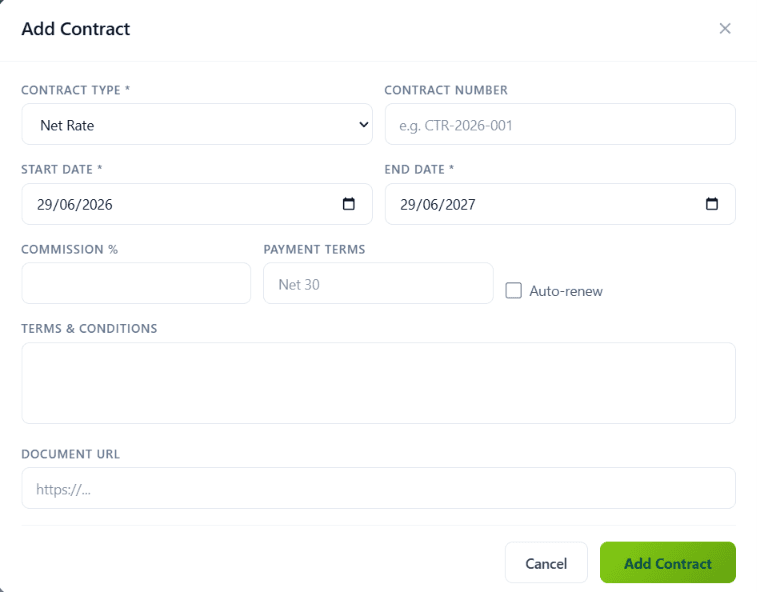
To add a new contract, click the + Add Contract button. An Add Contract window will appear.
Complete the following fields:
- Contract Type (Required) — Select the type of contract from the drop-down menu (e.g. Net Rate, Commissionable, Override)
- Contract Number — Enter a unique contract reference number (e.g. CTR-2026-001)
- Start Date (Required) — Select the date when the contract becomes effective
- End Date (Required) — Select the contract's expiration date
- Commission % — Enter the commission percentage agreed upon with the supplier, if applicable
- Payment Terms — Specify the payment terms (e.g. Net 30, Net 60, On Departure)
- Auto-renew — Enable if the contract should automatically renew upon reaching its expiration date
- Terms & Conditions — Enter any important contract terms, conditions, or special agreements
- Document URL — Paste the URL of the digital copy of the signed contract or supporting documentation
After completing the required information, click Add Contract to save. Once added, the contract appears in the supplier's Contracts section.
Allotments
Manage inventory allotments and monitor availability.
Adding a new allotment
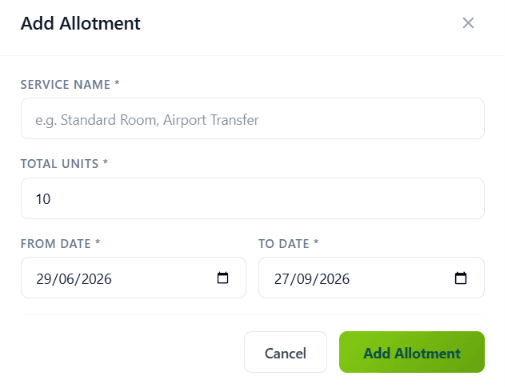
To add a new allotment, click the + Add Allotment button.
Complete the following fields:
- Service Name (Required) — Enter the name of the service or product for which the allotment is being created (e.g. Standard Double Room)
- Total Units (Required) — Specify the total number of units allocated for the selected service
- From Date (Required) — Select the date when the allotment becomes available
- To Date (Required) — Select the date when the allotment expires or is no longer available
After completing all the required fields, click Add Allotment to save. Once added, the allotment appears in the supplier's Allotments section, where you can monitor inventory consumption in real time.
Blackouts
Configure and review blackout dates or unavailable periods.
Adding a new blackout
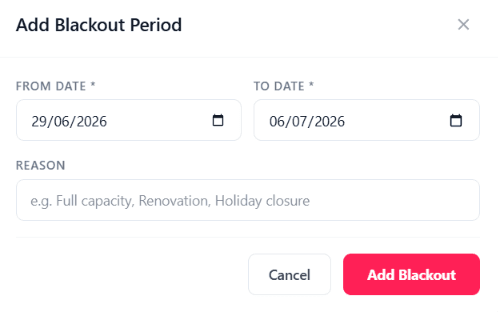
To add a new blackout period, click the + Add Blackout button.
Complete the following fields:
- From Date (Required) — Select the date when the blackout period begins
- To Date (Required) — Select the date when the blackout period ends
- Reason — Enter the reason (e.g. Full Capacity, Renovation, Holiday Closure, Maintenance)
Once added, the blackout period appears in the supplier's Blackouts section. The proposal builder respects these dates — agents trying to book this supplier on a blackout date see a clear warning.
Payables
View outstanding balances, payment records, and supplier payment history.
Adding a new payable
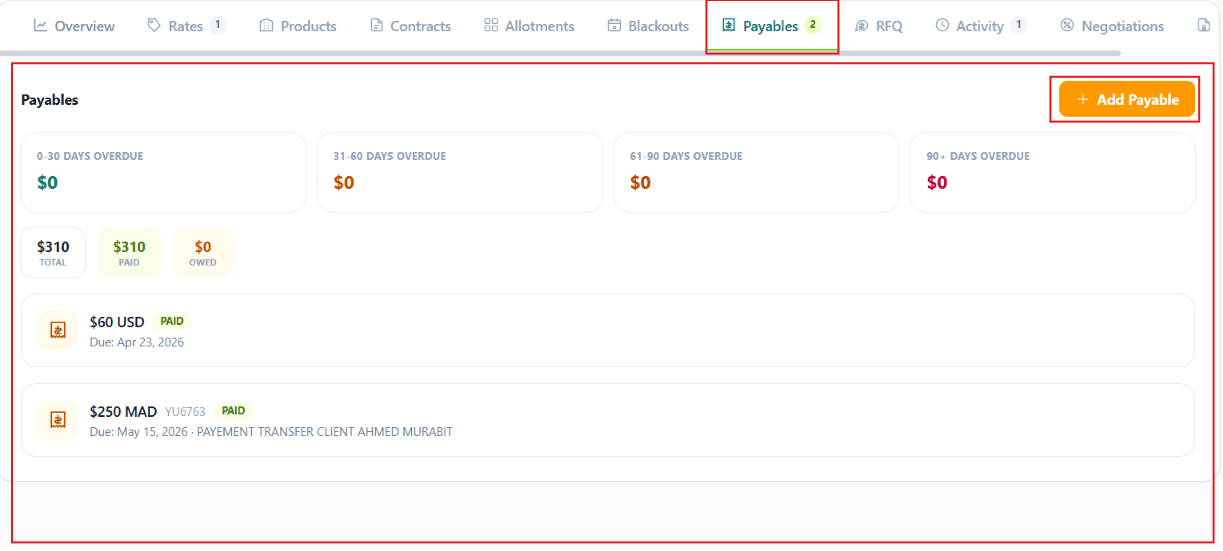
To create a new supplier payable, click the + Add Payable button in the Payables section.
Complete the following fields:
- Amount (Required) — Enter the amount payable to the supplier
- Currency (Required) — Select the currency for the payment (e.g. MAD)
- Due Date (Required) — Choose the date by which the payment should be made
- Reference — Enter a booking number, invoice number, or any other payment reference to help identify the payable
- Notes — Add any optional comments or additional information (payment instructions, supplier-specific notes)
Once added, the payable appears in the Payables list, where you can monitor its status, track due dates, and mark it as paid when settled.
RFQ (Request for Quotation)
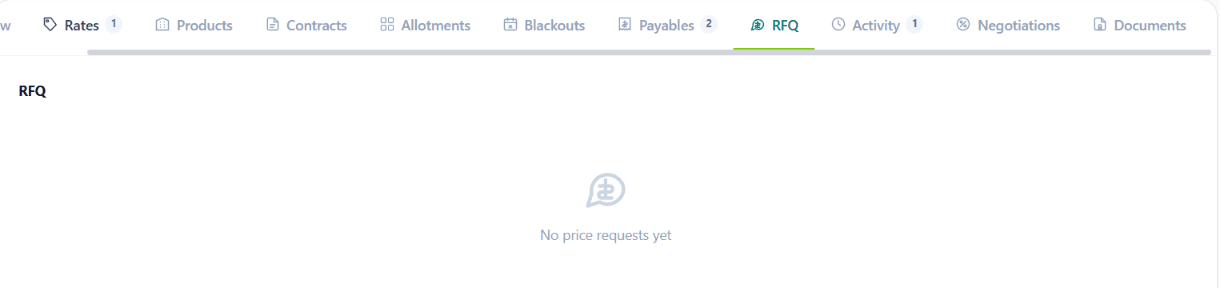
The RFQ feature allows you to create, send, and manage quotation requests for a supplier. It helps streamline the procurement process by capturing price comparisons across vendors, faster decision-making, and stronger negotiating positions.
Activity
Activity provides a chronological history of all actions related to the supplier.
Adding a note
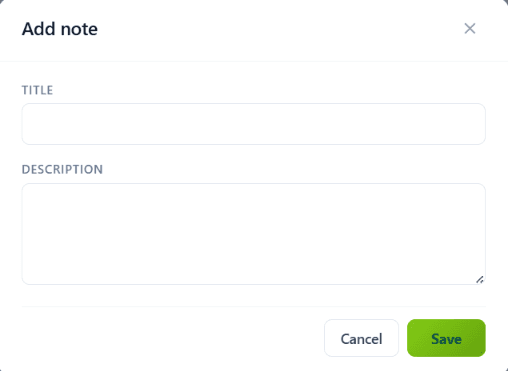
To add a note to the supplier's activity history, click the + Add Note button. An Add Note window will appear.
Complete the following fields:
- Title — Enter a short, descriptive title for the note
- Description — Provide the details of the note, including any important information, updates, or follow-up actions
After completing the fields, click Save. The note becomes part of the supplier's activity log, providing a complete record of communications and decisions.
Negotiations
Negotiations allows you to track ongoing discussions and agreements with suppliers.
Recording a new negotiation
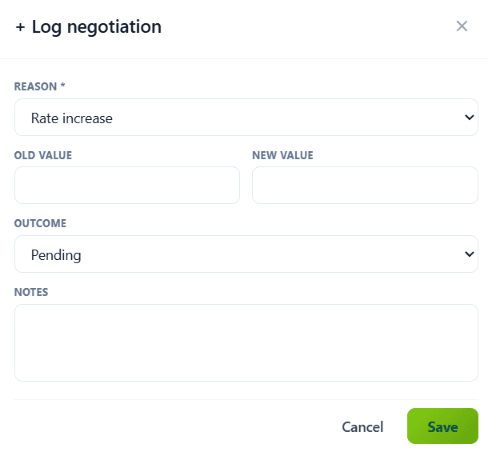
To record a new negotiation, click the + Log Negotiation button.
Complete the following fields:
- Reason (Required) — Select the reason for the negotiation from the drop-down list (e.g. Rate Increase, Volume Discount, Contract Renewal)
- Old Value — Enter the current or previous value before the negotiation
- New Value — Enter the proposed or agreed new value
- Outcome — Select the current status (e.g. Pending, Approved, Rejected)
- Notes — Add any additional information, discussion points, or comments
Once saved, the negotiation is added to the supplier's Negotiations history.
Documents
The Documents section serves as a centralised repository for all files related to the supplier.
Uploading a new document
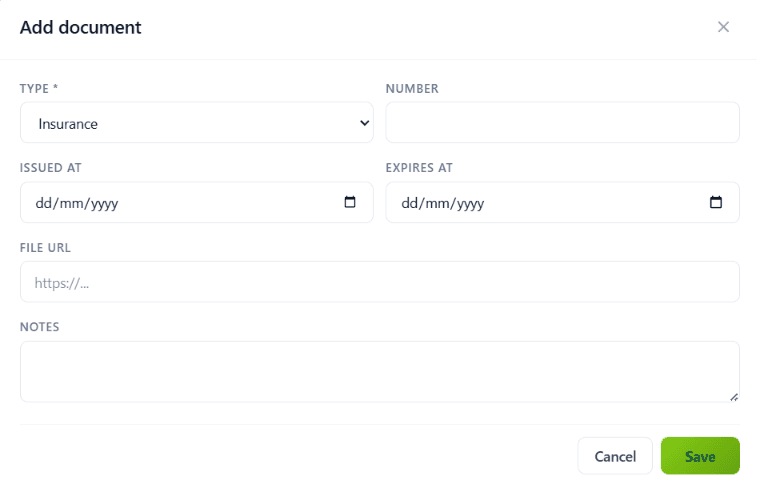
To upload a new document, click the + Add Document button.
Complete the following fields:
- Type (Required) — Select the type of document (e.g. Insurance, Contract, Licence, Tax Certificate)
- Number — Enter the document or reference number, if applicable
- Issued At — Select the date the document was issued
- Expires At — Select the document's expiration date, if applicable
- File URL — Paste the URL of the uploaded document or file
- Notes — Add any additional information or remarks
Once saved, the document is stored in the supplier's Documents section, where it can be viewed, managed, and referenced.
Supplier Portal
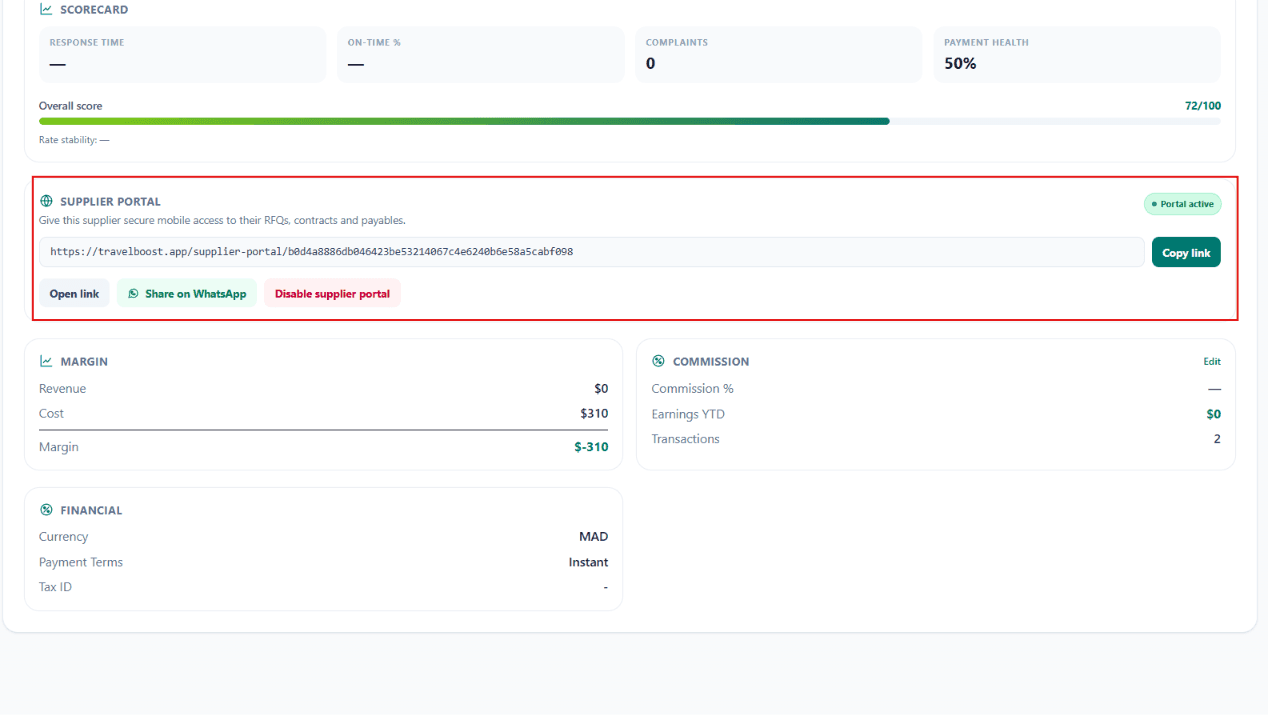
The Supplier Portal serves as a self-service platform where suppliers can:
- Receive and respond to RFQs
- Submit pricing or rate proposals
- Monitor contracts
- Track payments and outstanding balances
- Communicate with the company without needing direct access to the main TravelBoost admin system
This feature simplifies supplier management by giving suppliers a secure, dedicated workspace while allowing administrators to monitor procurement and supplier activity centrally.
How this helps your agency
Roughly 30% of an operations manager's time is spent on supplier communication: "did you get my payment?", "what's the new rate?", "is my contract still active?". The Supplier Portal turns 30 of those weekly calls into self-service. Your suppliers feel more professional working with you. Your team spends time on customers, not on supplier admin.
Frequently asked questions
What's the difference between a Rate and a Contract?
A Contract is the legal framework (validity dates, payment terms, cancellation policy, auto-renew) you have with a supplier. A Rate is the specific price within that contract — a hotel can have multiple seasonal rates under one contract. Always create the contract first, then the rates.
How do allotments work?
An allotment is a block of inventory the supplier reserves exclusively for you (e.g. 20 double rooms at Hotel X for July 1–14). When you book a tour using that hotel, the system pulls from the allotment first. Unsold inventory auto-releases back to the supplier at the release-back deadline — no penalty.
Can I send an RFQ to multiple suppliers at once?
Yes — create the RFQ once, select all the suppliers you want to query, click Send. Each supplier sees only their own copy in the Supplier Portal and replies independently. You compare responses side-by-side in the RFQ Queries tab.
What happens when a contract is about to expire?
The system alerts you 60 days before contract expiry. You can renew (extend the validity date), renegotiate (log a Negotiation, then update the rates), or let it expire. Auto-renew contracts extend automatically unless cancelled.
Where can suppliers see what they owe me / I owe them?
In the Supplier Portal: they log in to their own restricted view that shows all open Payables (what you owe them), Receivables (what they owe you), and Contract status. This eliminates 80% of "where's my payment?" emails.